
Colors mapping
|
Colors mapping The purpose of this command is to manage and to create an artificial colorization for a given color layer of a point cloud. |

The user can manage the rest of Reconstructor®'s GUI while keeping this dialog open.
When a point cloud is pre-processed, extra-information is added, and this is organized into color layers. Information can be scalar (e.g. reflectance, range, confidence) or vectorial (e.g. inclination).
User can add or remove color layers to a cloud pressing  and
and  respectively in the Colors Mapping window.
Only one color layer at a time is rendered in the 3D scene.
User can also change a cloud's current color from the layers list on the left of the colors mapping dialog or by clicking on the relative command in the property browser.
When a color layer is rendered, a colorization is used to associate the points' color values to a drawable color. Only scalar information can be mapped with colors through this dialog. The color layer Inclination is an exception: it represents the normals of the points and it is colored automatically.
Layers list
On the top left there is a layers list that show which layers are associated to the current point cloud.
Map colors tab
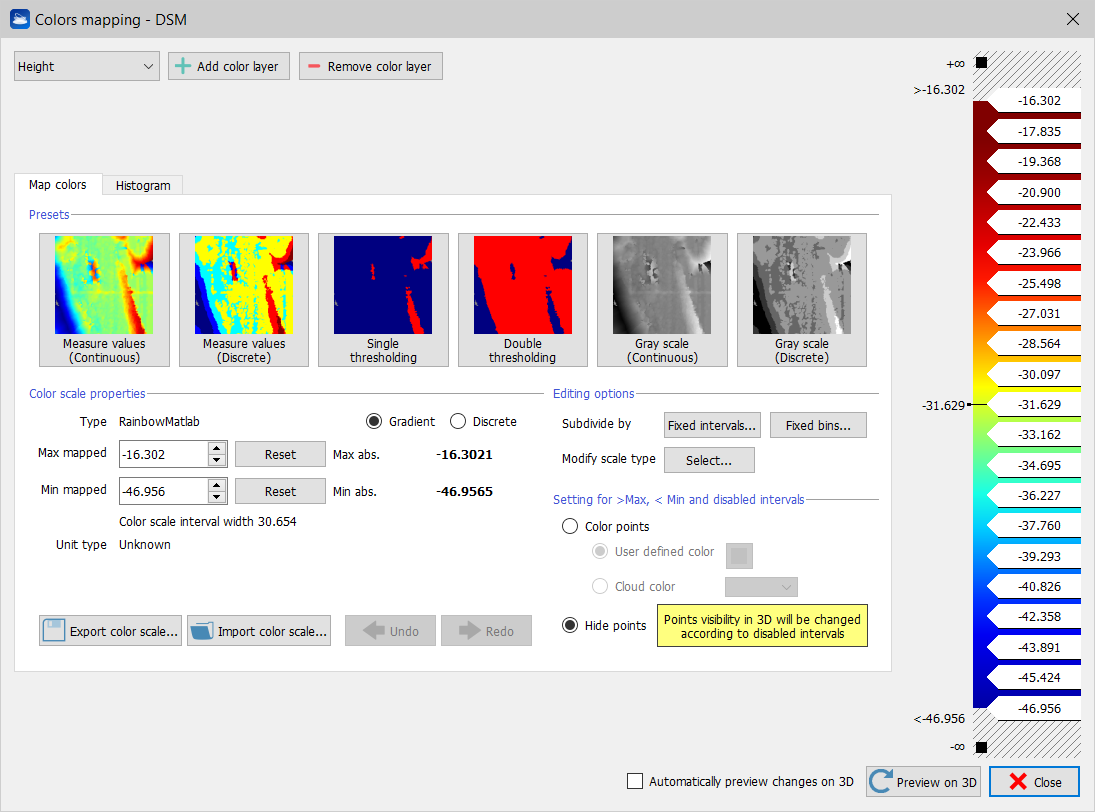
The Colors mapping window has the interface as below if a scalar layer is selected.
Presets
In the Map Color tab there is a set of buttons to apply a pre-defined colorization to the current selected layer.
Buttons used to map colors are:
- Measure values (continuous) : map the current layer to a continuous Rainbow Matlab style color.
- Measure values : map the current layer to a discrete Rainbow Matlab style color.
- Single thresholding: map the current layer to solid red and blue.
- User can set a threshold moving up and down the central value label.
- Double thresholding: map the current layer to solid red and blue.
User can set two thresholds moving up and down the values labels.
- Gray scale: map the current layer to a continuous gray gradient.
- Gray scale (discrete): map the current layer to a discrete gray gradient.
Color scale properties
On the right there is a color scale that shows the selected colors map in combination with labels. Labels show maximum and minimum (bounding) values and also values between colors. User can choose among several types of color scales via Presets and by managing the Editing Options. User can also change and disable colors by clicking on the color check box.
The following scale properties are displayed:
- Max mapped to set the max value and show it in the legend (click on Reset button to reset to the maximum absolute value)
- Min mapped to set the min value and show it in the legend (click on Reset button to reset to the maximum absolute value)
- Colors scale interval with that gives information about width of the color intervals
- Unit type that is depending on the type of colorization
Editing options
Colors intervals in the scale can be subdivided by:
- Fixed intervals according to the unit type (measure of unit)
- Fixed bins according to a defined number of equal spaced bins
The scale type can be modified by selecting one of the following options:
- Extended
- Gray scale
- Rainbow
- Rainbow Matlab
- Ironbow
Setting for > Max, <Min disabled intervals
When out of range, two modalities of points colorization can be chosen:
Color points: all the points out of the (Min,Max) interval are colored with an user defined color or with a chosen cloud layer of color (e.g. Reflectance, Inclination, ...)
Hide points: all the points out of the (Min,Max) interval are hidden.
Histogram tab
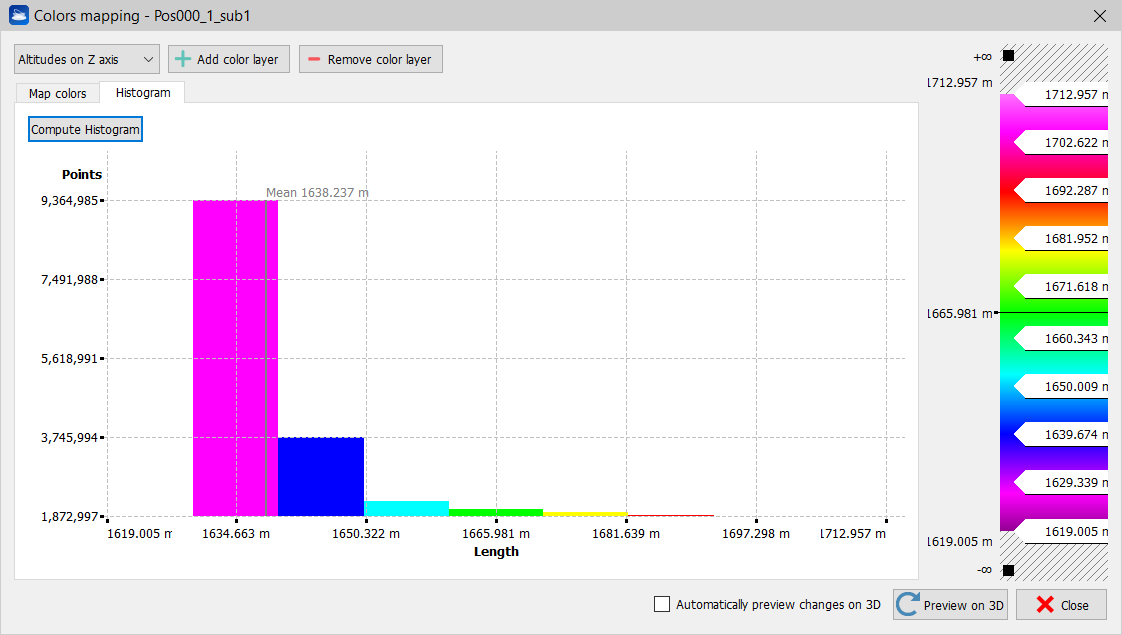
A colored histogram shows a statistical distribution with colors chosen by user. In abscissa, the histogram information about current measure (each color identifies a local radius of the measure) and in ordinate it shows a measure of how many occurrences of points are mapped to a color. The mean value is also shown.
Click on Compute Histogram to extract it after creating or modifying it.
Add color layer
User can add color layers to a cloud via functions like Inspection or Color with altitudes by clicking Add color layer button.
Buttons to add layers are:
- Color with altitudes. that insert a layer to color distances along an axis direction.
- Inspection that insert a layer to color distances between point cloud and a reference model (e.g. Mesh) .
- Compute point normals that insert a layer to colors normals of points coherent to a plane direction.
- Compute confidence that insert a layer to color confidence amplitudes.
- Inclination from plane that insert a layer to color inclination angles.
- Color with ambient light: visualization of outdoor large mapped areas can be enhanced with this layer.
- Color with range: inserts a layer to color distance from the observation point.
- Add layer from image: applies an image on the point cloud (e.g. a 2Dview after a color editing). Pay attention to the dimensions of the images: they must be the same of the point cloud ones.
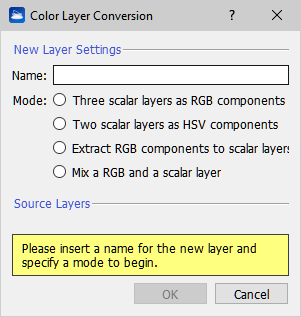
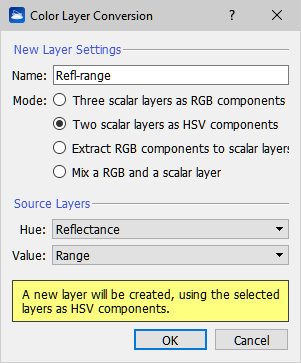
- Merge or split layers: combines RGB and scalar layers to obtain a customized new layer of color:
Follow the Reconstructor video tutorials also to perform the Colors Mapping processes.