
File menu
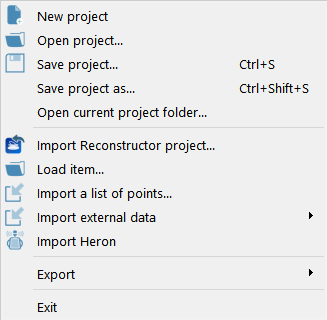
This menu is mainly organised in three main parts:
|
|
|
|
Exit: quits Reconstructor®. If you have unsaved changes to your projects, Reconstructor® asks you if you what to save the changes or not before exiting. |
|
[1] Each project has its own folder called with the same name. Reconstructor® projects contains at least some of the following subfolders:
Documents / Exports / Grids / Images / Imports / Meshes / Polylines / Results / Settings / Trash / Unstructs.
These folders are automatically created when the project gets populated.
 Items removed from the Reconstructor® project are moved from their initial location to Trash folder.
To recover space on your hard drive, it is really advisable to periodically empty this folder if the contents are no longer useful.