
Automatic Mode
 To start with Automatic mode, it's highly recommended to have a quick look on the Preset mode to have an overview of each process's definition.
In the Mapper workspace, Automatic Processing button can be found on the right in HERON DATA PROCESS section.
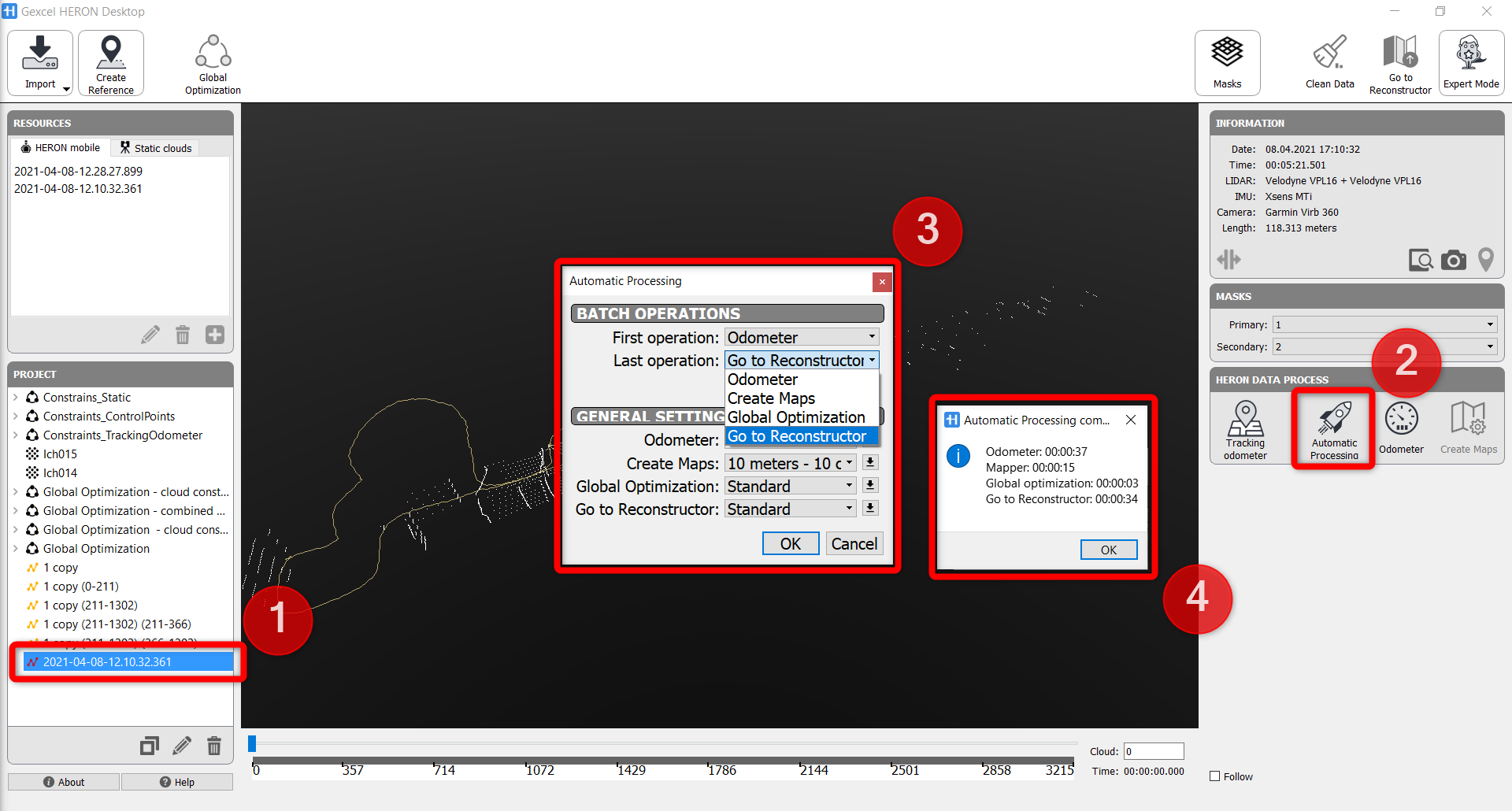
➊ Once a HERON® data is selected from the PROJECT window on the left, ➋click on Automatic Processing. The Automatic Processing window will be so opened.
➌ In Batch Operations, First Operation will depend on the current status of the HERON® Data. For instance, if we will start from a HERON® raw data (as shown in the image below), First operation will be Odometer ONLY. For the Last operation there will be a drop-down list where we can define which process will be the last operation.
After defining First and Last operation, certain presets will need to be defined for each operation in GENERAL SETTINGS, depending on the type of survey environment:
e.g. for an indoor survey
+ Odometer: Indoor preset
+ Create maps: 10m - 10cm
+ Global Optimization: Standard Gravity
+ Go To Reconstructor: Standard
After selecting the presets, click on OK button to run the Automatic Processing. The software will automatically run and show each process in the workspace, so that an operator can follow and control the quality of the entire process.
Once the process is done (➍), close the workspace to get back to Launch Window of HERON Desktop, then open Reconstructor® and Import processed Heron Data.
See also Automatic Processing page.