Cut a Trajectory during the Import
Resources window is where all the imported data are listed. There are 2 main tabs in the window in which:
- HERON mobile tab lists HERON® Raw data,
- Static clouds tab includes all external 3D data which is originally from 3D Meshes, BIM models, and 3D point clouds formats.
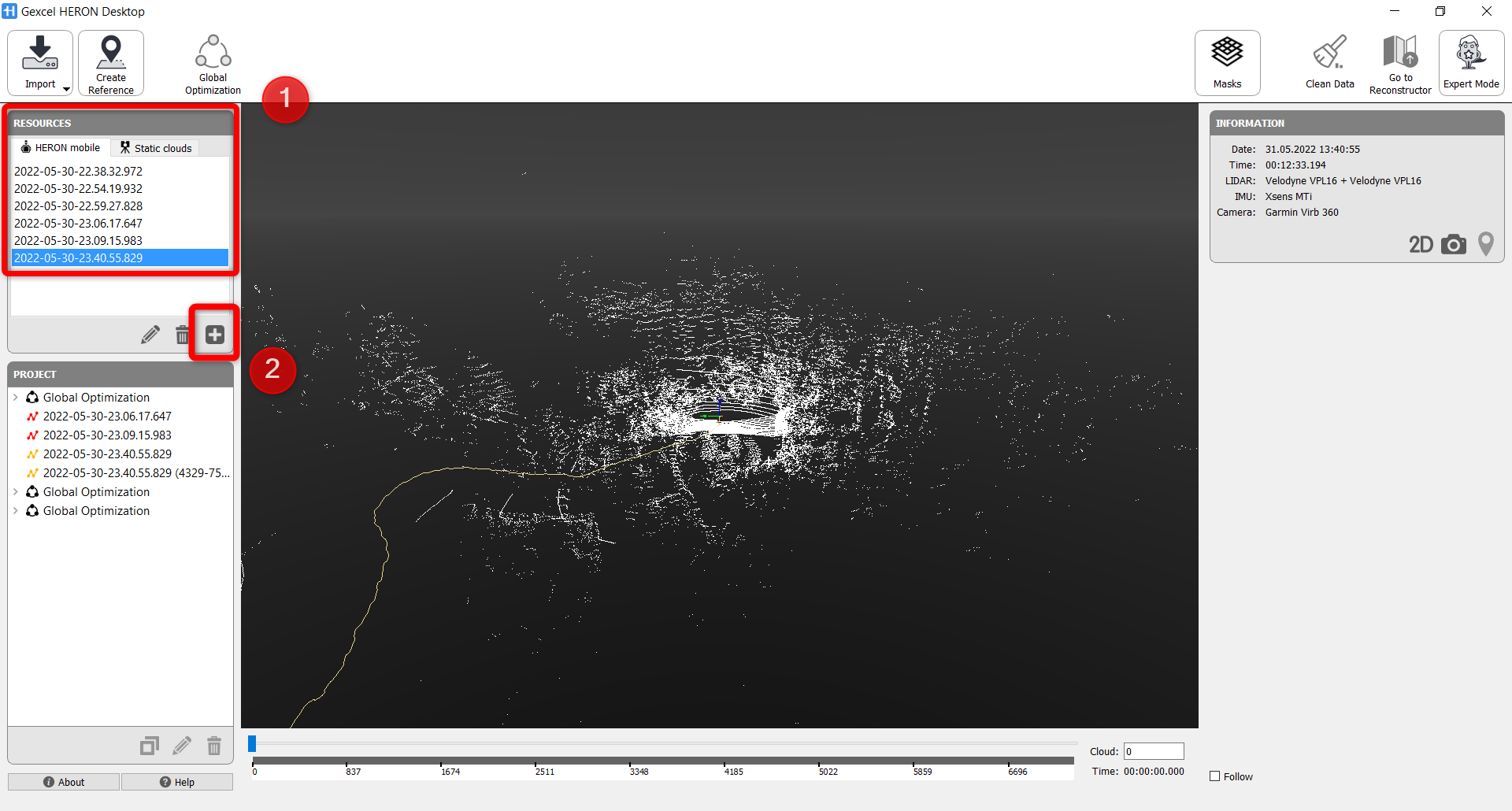
Data from Resources window are selected and use  button to add the data into Project window for trajectory processing. As soon as clicking on the button, new HERON Desktop workspace will be opened. In this workspace, from the selected HERON® data, you can define starting and ending points of the data to be processed and eliminate useless data.
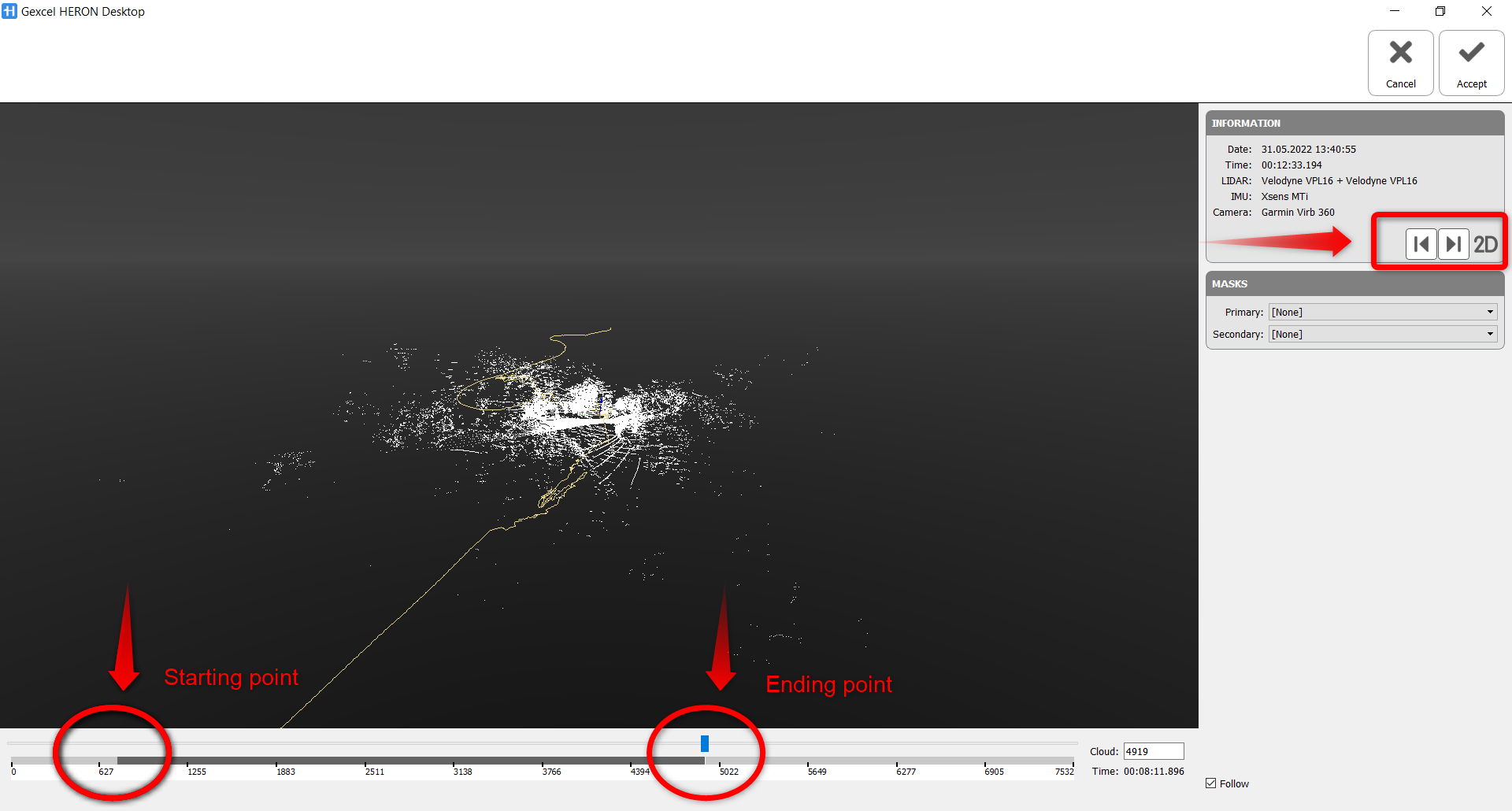
As shown in the image below, from the slide bar:
- Move the slider on the slide bar to an interested starting point and use button
 (in Information window on the right) to set starting point,
 - then move the slider to the ending point and use button
 to set ending point
 - and use
 button to start importing the data into Project window.