
Licensing
 In the next paragraphs only the procedure to manage and activate the software licenses is explained.
For licenses permission please directly contact your HERON® system(s) provider.
HERON Desktop Licensing
To run the HERON Desktop software a valid license key is necessary.
|
|
USB LICENSE If you have a HERON Desktop USB dongle, how can you activate/update a license on it? |

|
Please use this code when communicating with Gexcel. |
|

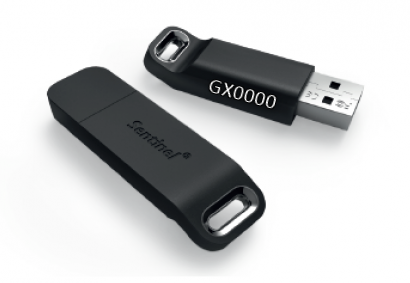
The first activation and the updating of a HERON Desktop license follow the same procedure:
Step 1 - Generating a .c2v file (to send to Gexcel)
Step 2 - Applying a .v2c file (got from Gexcel)
Step 1 - Request
- Plug in the USB dongle
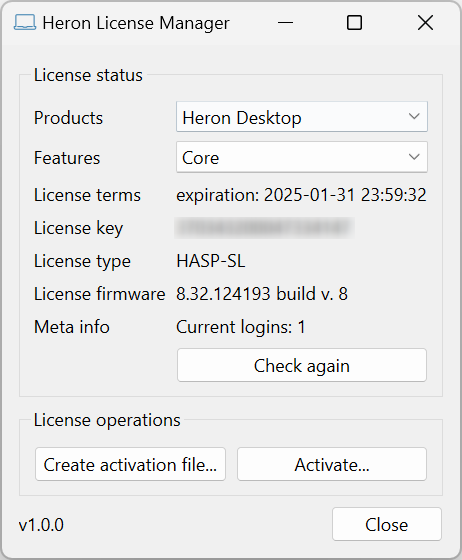
- Open HERON Desktop and select Help → License Manager. Your license status is here detailed.
- Click on Create activation file ....
- Choose the type of license key: → USB license key (1 found)
The USB dongle is found, checked, and used to generate the request file .c2v. - Type the desired file name (for example YYYY.MM.DD_DongleID_CompanyName) and Save the .c2v file.
- Send the .c2v file by e-mail to license@gexcel.it, with your name/Company name and the content of the request.
 Generating the activation file is possible from any PC.
Step 2 - Activation
After receiving the .C2V file, the Licensing Team will send an activation .V2C file in reply.
Please, follow these instructions to apply it.
- Plug in the USB dongle
- Open HERON Desktop and select Help → License Manager.
- Activate the license by clicking the Activate... button and loading the activation file (.v2c) that Gexcel or your HERON system provider supplied.
- A successful message should appear at the end of the license activation process.
- Close the window. Now you can start working with HERON Desktop software.
Multi-licensing (USB server licenses)
A multi-licensing server dongle lets you to simultaneously work on more PCs.
The computers can be positioned in different locations, but they must be connected to the same network (same IP address and subnet mask).
To activate a multi-seats license on a USB server dongle, the same steps explained above might be taken.
See more details at Installation paragraph to correctly set the software on the PCs connected to the network.
 If, when opening Mapper command, a “License not found” warning dialog appears, your license is not active.
The licensing status can be verified in every moment from Help → License Manager.
|
|
The activated HERON Desktop add-ons (Features) are shown here, as well as the expiration date of your license (License terms) and the ID code of your License key. |
Contact support.heron@gexcel.it for further details.
NOTE: Disabling the antivirus software may be required in order to activate the licence (not mandatory for Microsoft® antivirus).
Reconstructor Licensing
Click here to learn how to manage Reconstructor licensing.