
Export Data
|
|
Go to Reconstructor This process directly exports the results of a Global Optimization process ready to be imported in the Reconstructor® project (as a Heron® Survey). Also relative trajectories, cameras and tags are exported within the point clouds. |

 This is the only way to export data from Heron® Desktop.
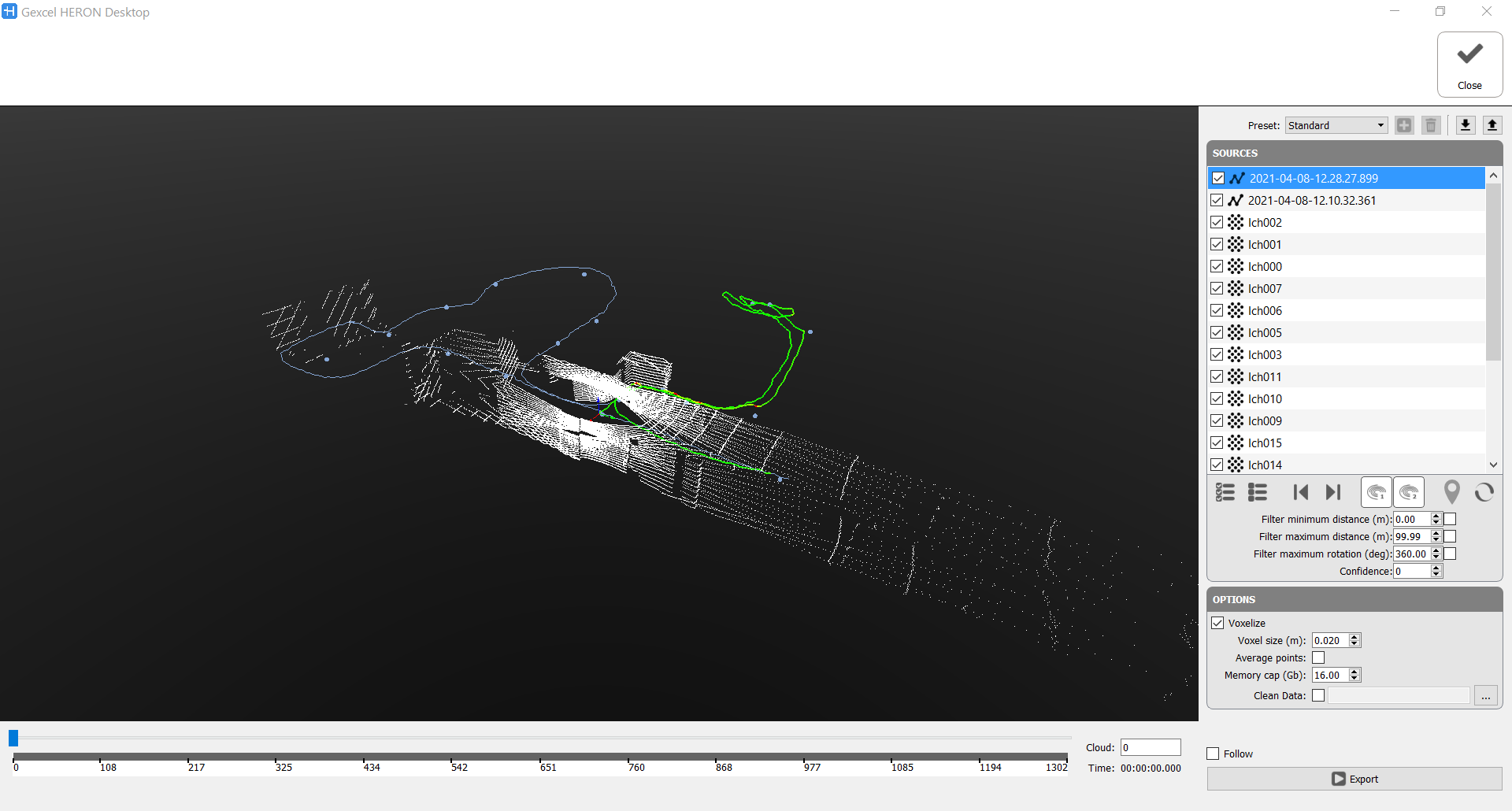
Sources
|
|
One or more acquisitions can be exported by checking them, |
|
|
as well as the position of the static scans in the global project. By flagging the scans, their poses will be exported, according to the result of the Global Optimization. By importing this information the relative statics scans inside the Reconstructor project will be moved inside the Heron® Survey just created. If static scans (or reference point clouds, generally speaking) were georeferenced, also the Heron® acquisitions will be exported in the same reference system and automatically georeferenced. |


|
|
these tools are used to cut out the data at the beginning and ending part of the Trajectory. |
|
|
When managing data from the Heron MS Twin's system (composed by 2 LiDAR sensors), you can decide whether to export the data referring to both sensors or to one only, depending on the geometry of the environment you have acquired. Select (highlight) Use laser 1 to export horizontal LiDAR sensor data Select (highlight) Use laser 2 to export sloped LiDAR sensor data
|
|
|
Toggle Cloud Export Panel To export acquisitions (also only portions of them) starting from the single turn of the Velodyne sensor. You can choose to export the clouds without subsampling them or subsampling them in different ways:
|


To complete the Export process it is possible to filter the data according to:
- Minimum and Maximum range distance from LiDAR sensor's center [m]
Flag the box(es) and insert the desired range value. - Maximum rotation of the LiDAR sensor [deg]
Flag the box and insert the desired range value. - Confidence
You can filter the data on distance, to avoid to keep in the exported cloud some useless areas.
- Filter minimum distance [m]: Check ☑ and set a value X to not take in account, during Export process, points at a range distance shorter than X meters.
 It is suggested to remove points closer to the sensor, at a distance shorter than 0.8÷1 m, because they are a little bit noisy.
 - Filter maximum distance [m]: Check ☑ and set a value Y to not take in account, during Export process, points at a range distance longer than Y meters.
- Filter maximum rotation [deg]: Check ☑ and set an α value in decimal degrees to exclude clouds referring to a rotation of walking direction greater than α degrees. If 360° is set, all the clouds will be exported; decreasing the value, less clouds will be exported.
- Confidence [integer value from 0 to 99]: increasing the number you will not export isolated points and with a poor quality (low confidence)
Options
Voxelize: It's highly recommended to uncheck this box, and leave the voxcelization while importing HERON data in Reconstructor
Check ☑ to subdivide the 3D space occupied from the point cloud into a set of voxels that represents the model within the discrete voxel space.
Voxel size [m]: dimension of the voxels used in voxelization
Average points: criteria to add the point inside the voxel. If Average points is flagged the position of the resting point inside the voxel is due to average position of all the points originally inside the voxel, otherwise the point closest to the center of the voxel is the point remaining after the subsampling.
Memory cap [Gb]: How much RAM memory we want to use for cumulating points during the export. The process is subdivided in chunks of 2GB each. Once the memory used by all the chunks reaches this value, the smart paging algorithm will start using the HDD to store and swap chunks.
Clean Data: Check ☑ and load the saved .vdb file to apply the cleaning mask to the exported map (see also Clean data).
If the voxelization is not applied, all the points will be exported.
If no Voxelize is checked all the acquired points will be considered during the Export process.
This filtering is independent of the analogous filtering in the Odometer phase, as well as the one in Create Maps.
|
|
After setting the export options parameters (below explained) click the Export button to start process. |
|
|
At the end of the process, click the Accept button to apply the process just done |


The exported items are:
- Point clouds (both from HERON® acquisition and from static scans)
- HERON® Trajectories
- Cameras position and images (if present)
- Tags and Annotations
in a single export process.
They make up a Heron® Survey in the Reconstructor® project.