
Import
|
|
In the Mapper window click the Import button to import HERON® raw data as directly exported by the HERON® system by using Import/Export command in HERON® Live. |

 External (not Heron®) 3D point clouds or scans can be imported using Reconstructor®, only if the Constraints add-on is licensed. These static and reference clouds must be processed by Reconstructor® before to be imported in Heron® Desktop and will appears under the static scan cloud tab (for details click here).
Import HERON Data
|
|
The Import HERON Data tool imports the Heron® raw data as it is after being exported from the Heron® system. Each Heron® raw acquisition is totally stored in a single folder created during the real time survey and exported from Heron® Live. The folder includes point clouds and relative trajectory, cameras, targets and annotations. |

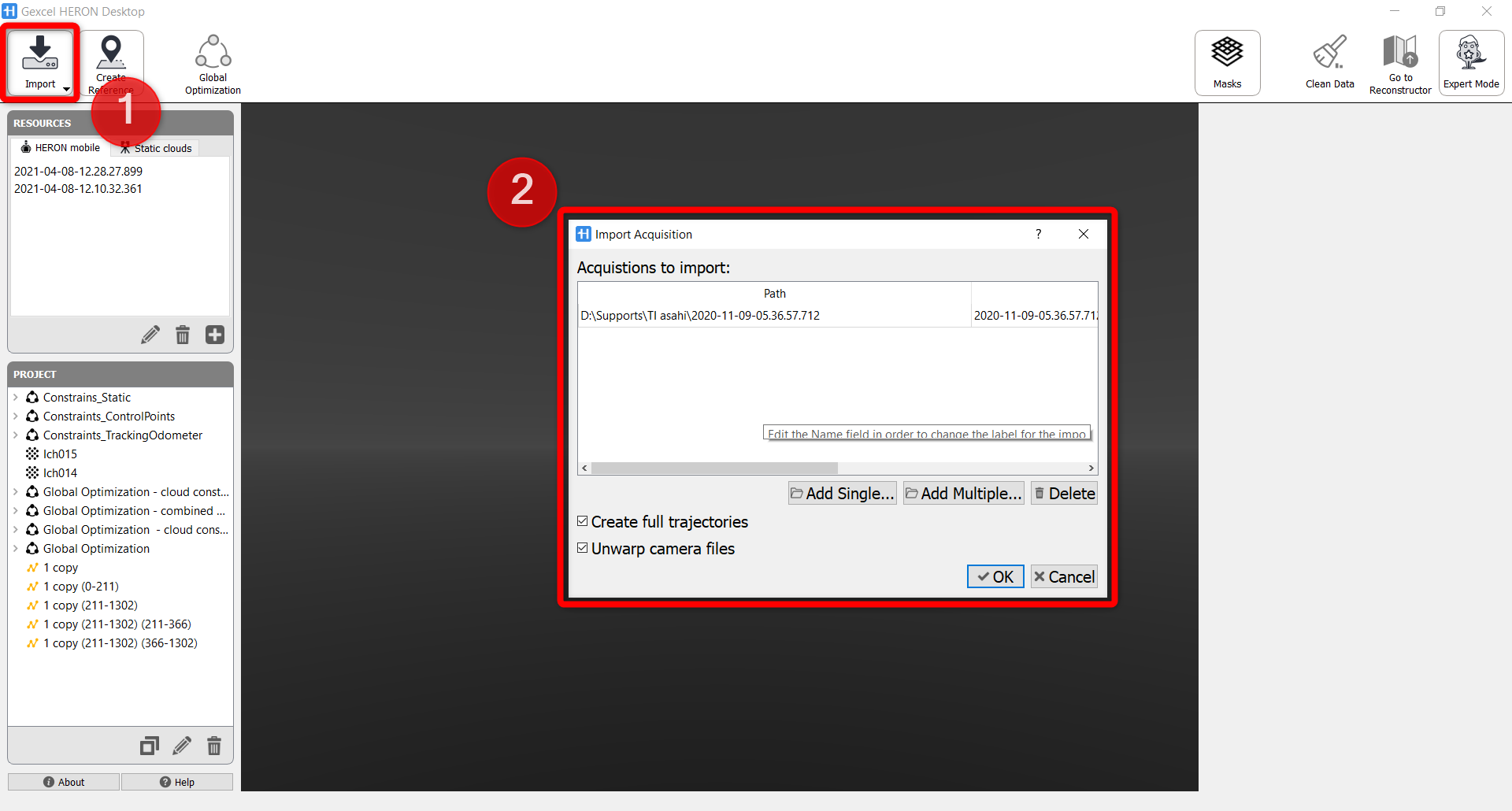
To create the list of the raw acquisitions to import, use the commands:
- Add Single: to add a single Heron® acquisition by selecting the relative folder.
- Add Multiple: to add more than one Heron® acquisition a browser is displayed. Search for the folder containing the Heron® acquisition subfolders to show and select them.
- Delete: to remove some acquisitions from the list of acquisitions to import
Check Create full trajectories only if you want to directly add the acquisition as a whole tracklet into the PROJECT section.
Then, confirm with OK.
At the end of the import process a list of Heron mobile raw data is displayed in the RESOURCES section, under the HERON mobile tab.
Noticed that if Create full trajectories is not checked, HERON raw data will be imported in the Resources window/HERON mobile only.
Follow the step-by-step video tutorial to learn how to import Heron data in the Mapper.