Odometer
|
|
This process re-calculates the trajectory by clouds registration. |

Select A tracklet in the project and click the Odometer button.
If you are in the Expert Mode, at the right side of the screen the parameters are listed, otherwise you can see only the presets. 3 presets are available, to guide you through the process: Indoor, Outdoor, CriticalAreas. By changing the preset, the parameters hereafter explained are automatically re-defined, but you can manually change the parameters as for your preference.
In most cases, a satisfactory result is reachable using one of the three presets.
|
|
After setting the parameters (below explained) click one of the the Run buttons in Process section to start process. |

|
|
At the end of the process, click the Accept button to apply the process just done |
|
|
or click the Cancel button to refuse the process just done |


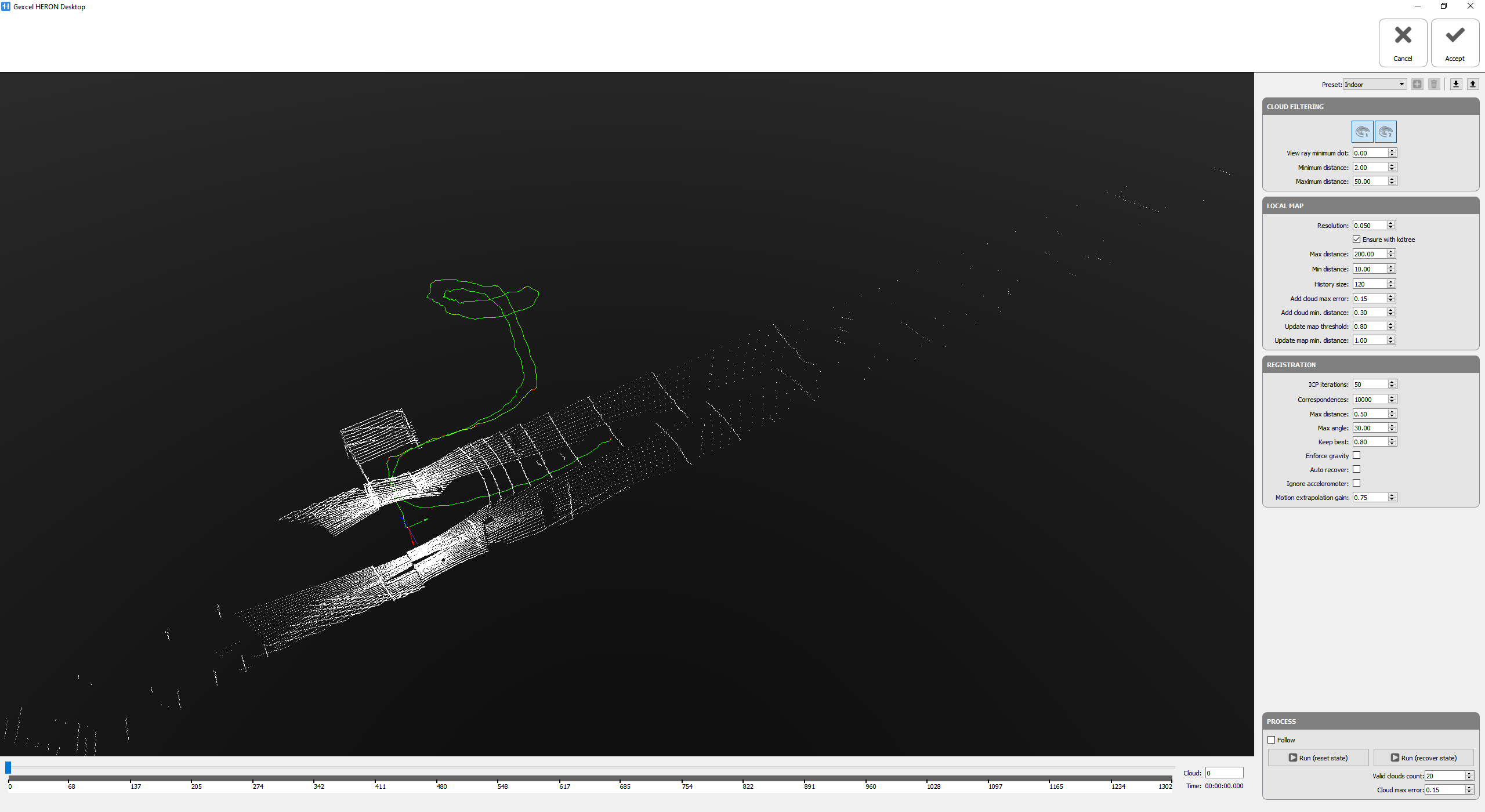
Cloud filtering
- Laser1
 is to select data acquired by horizontal laser sensor only to do the Odometer operation
 - and Laser2
 is to select data acquired by obliqued laser sensor only to do the Odometer operation
 - As default, the data acquired by both sensors will be processed (only with HERON MS Twin). For HERON Lite series, these buttons will not be available.
- View ray minimum dot: this parameter defines the dot product between the laser ray and the normal of the surface (i.e. the product of the magnitudes of the two vectors and the cosine of the angle between them).
 It is used to filter out points that were acquired in a very shallow angle. If the direction of the laser is very parallel to the surface hit you may be interested in getting rid of the point, since the measurement error can be very large.
Its value varies between 0 and 1:
• 0 → all rays are accepted, even those parallel to the surface
• 1 → only rays orthogonal to the surface are accepted
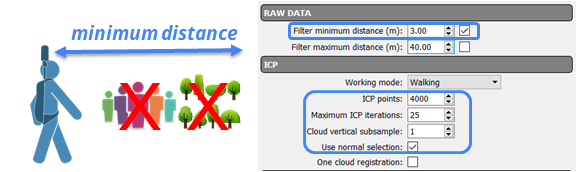
- Minimum distance [m]: set a value X to not take in account, during Odometer process, points at a range distance shorter than X meters.
Use this filter in case of moving people and/or objects like vegetation close to the sensor and objects useful to a good alignment far from the sensor. - Filter maximum distance [m]: set a value Y to not take in account, during Odometer process, points at a range distance longer than Y meters.
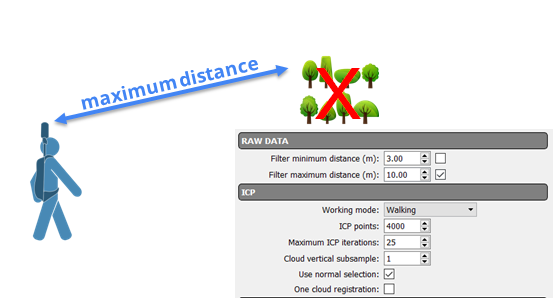
Use this filter in case of moving people and/or objects like vegetation far from the sensor and objects useful to a good alignment close to the sensor or simply to remove data you know that it is not interesting your survey.
Local Map
These parameters express the criterion by which maps are created or updated starting from single clouds.
Here are parameters to define how is the registered reference map and how frequently a cloud will be updated to the updated reference map.
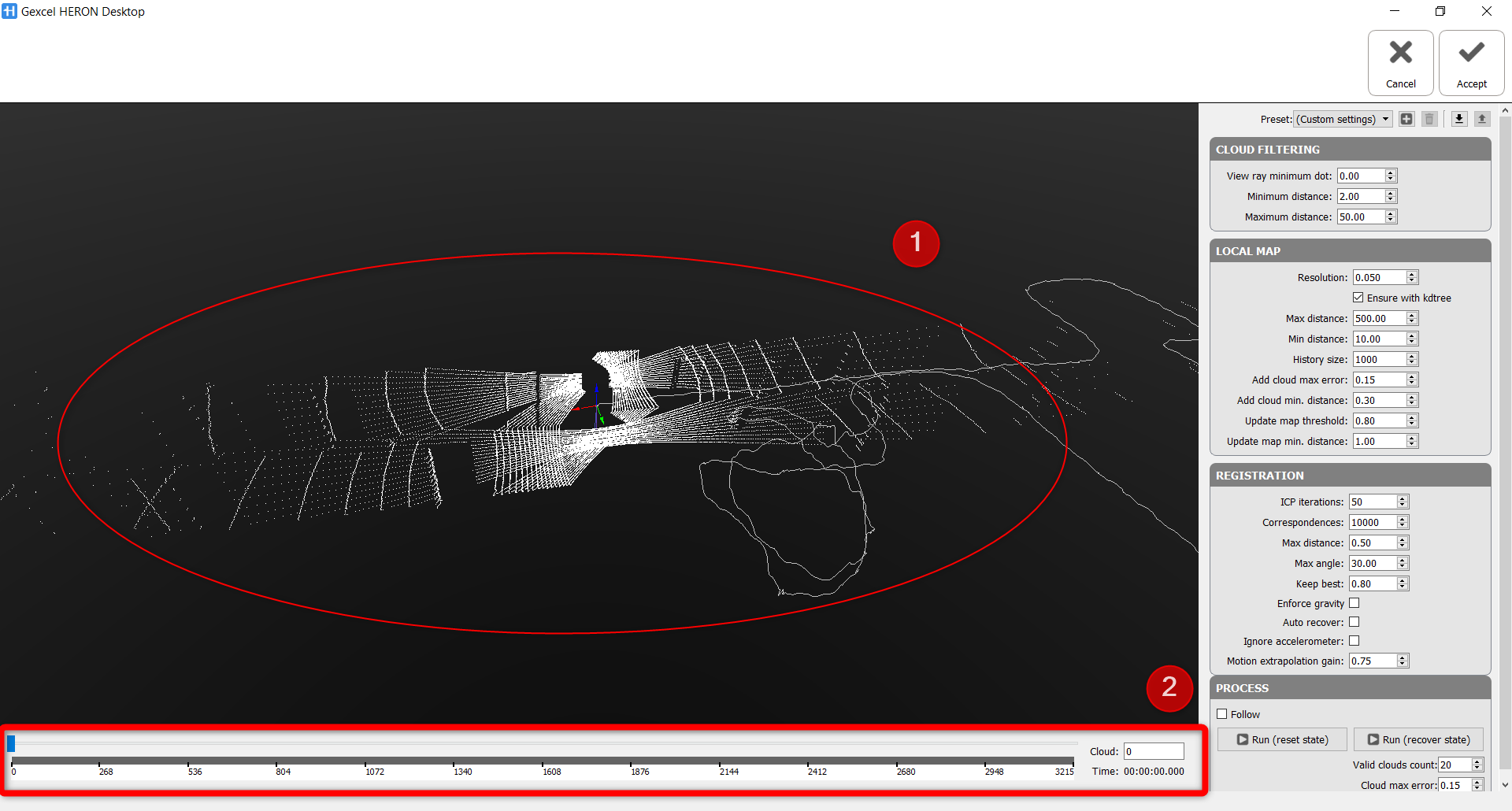
In general, when HERON is under working condition, laser sensor/sensors will rotate and send laser rays to capture any geometry in its field of view, for every rotation of the laser sensor, the system will acquire 01 individual point cloud as shown in the image below in which
- ➊ is an individual point cloud acquired by 01 rotation of laser sensor/sensors
- and ➋ is total number of individual point clouds
In Odometer process, from the very beginning, the 1st individual cloud will be registered with the 2nd cloud to create initial map, then 3rd cloud will be computed and updated to the map, and with the other clouds will be updated to the map till the end of process when all the individual point clouds are registered to the map.
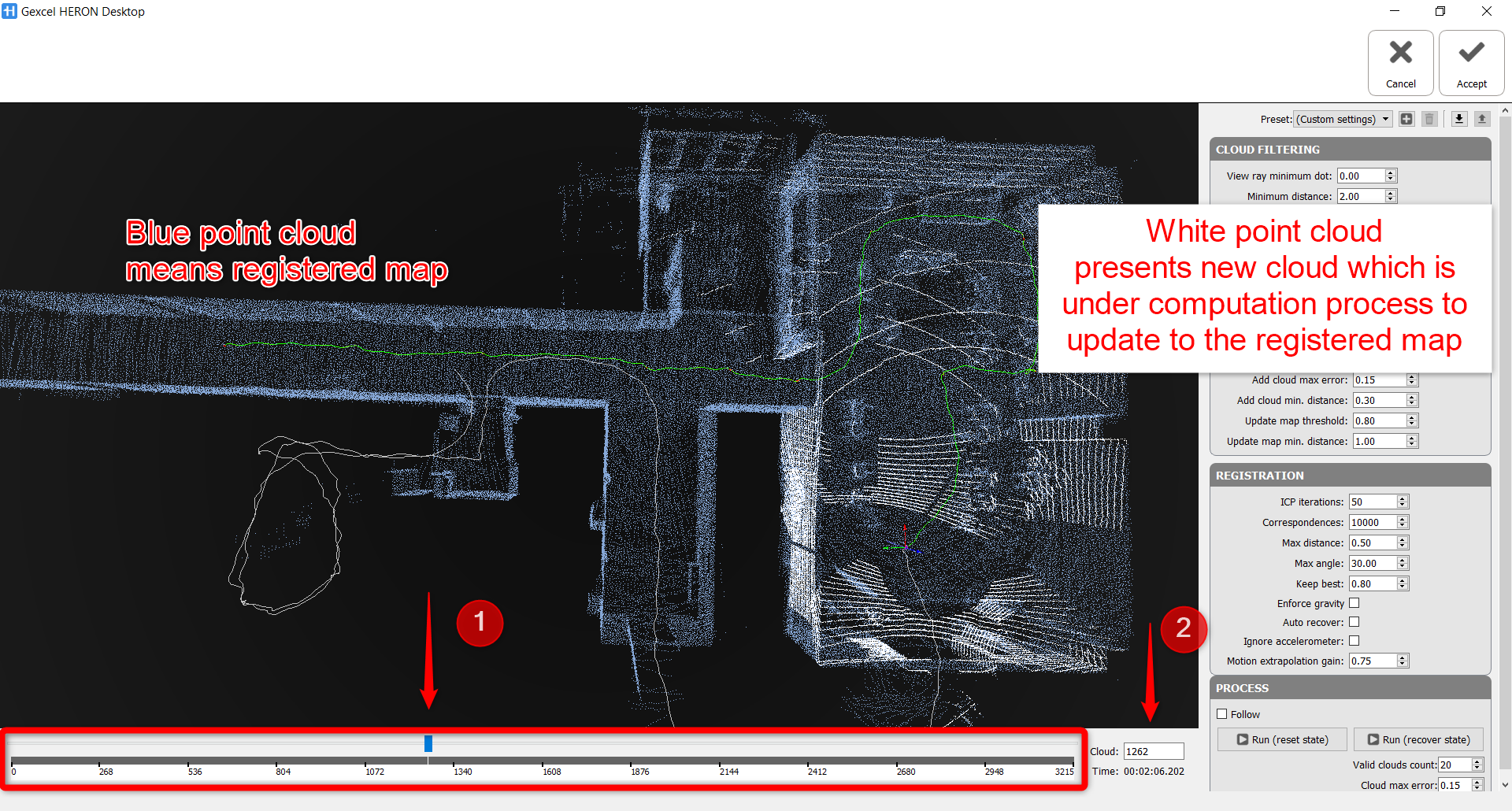
From the image above, an HERON® acquisition is under Odometer process, the map has been processed and updated until 1262nd cloud, 1263rd is being updated.
By changing any parameters in Local Map, the operator is controlling the Odometer process in a very detailed level at each individual point cloud, ensuring the final quality of the HERON data.
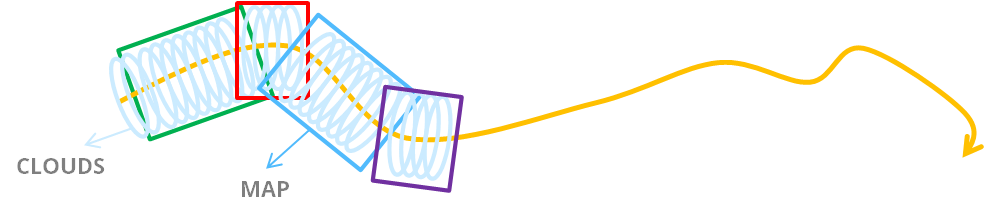
A frequent map updating is necessary when:
- highly variable scenarios from different areas with a few elements in common (e.g. stairs) are present
- considerable movements are applied to the sensor in different areas (e.g. corridors)
Less the environment changes less updating of maps is due.
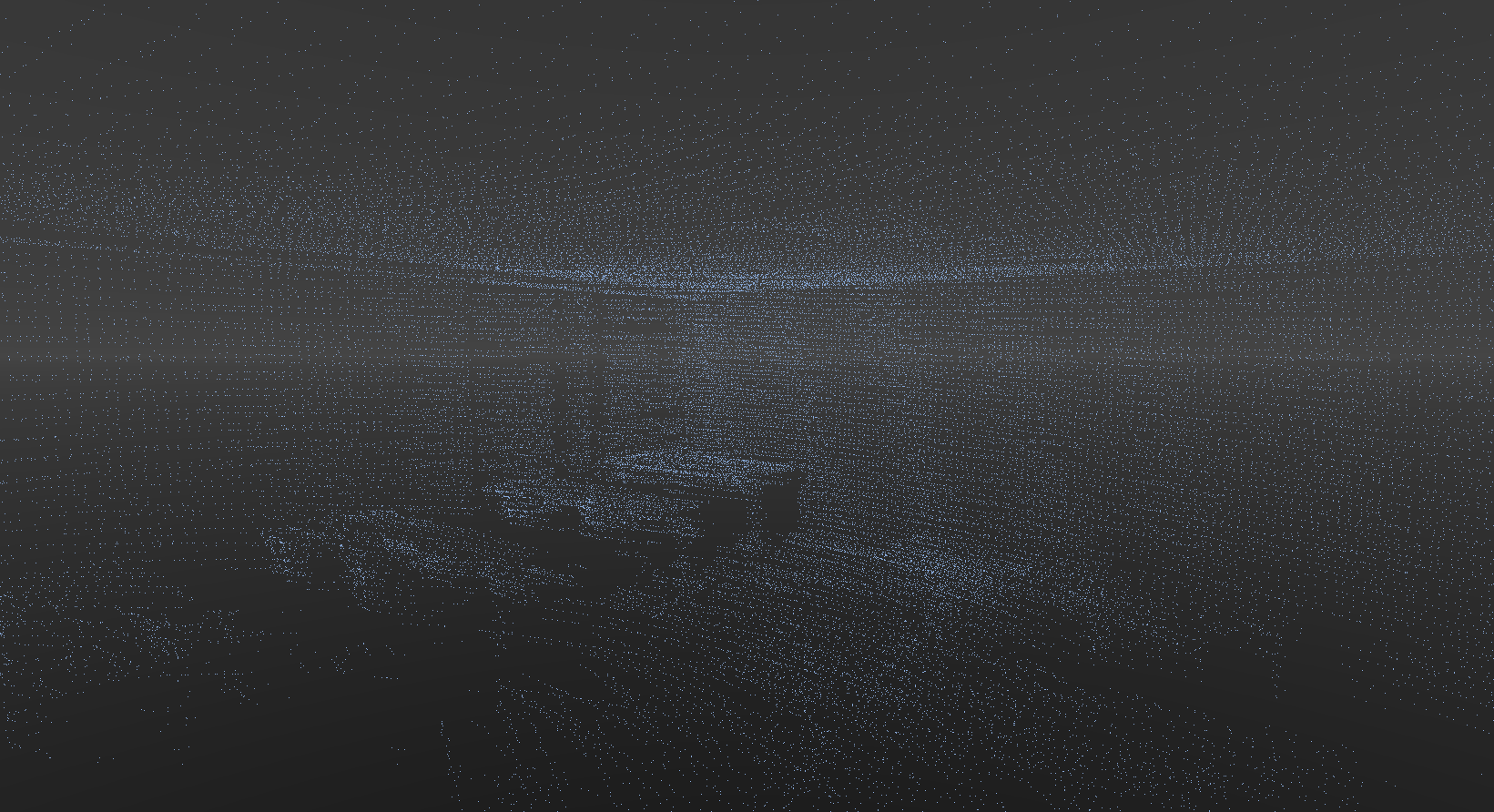
- Resolution [m]: In order to optimize the performance and efficiency of every computation of the process,sub sampled clouds are used to update map. The clouds are voxelized and a volumetric subsampling is applied on the voxels, or on the other hand, a voxel is a cube with user-defined dimension, Voxcels are created from dividing bounding box of each individual clouds. The resolution is the dimension of the voxels and is the minimum separation between points in the local map. If the set value is too low, some noise could be present inside the clouds, causing a final bad result. it's recommended to set high resolution when processing A part of HERON data when the surrounding environment has either poor geometry quality (i.e. open space, tunnels, corridor)
It is really suggested to keep flagged Ensure with kdtree to prevent that duplicated walls are present in the local map, which leads to more noisy results.
|
|
|
|
A local map with low resolution |
Same local map with high resolution |
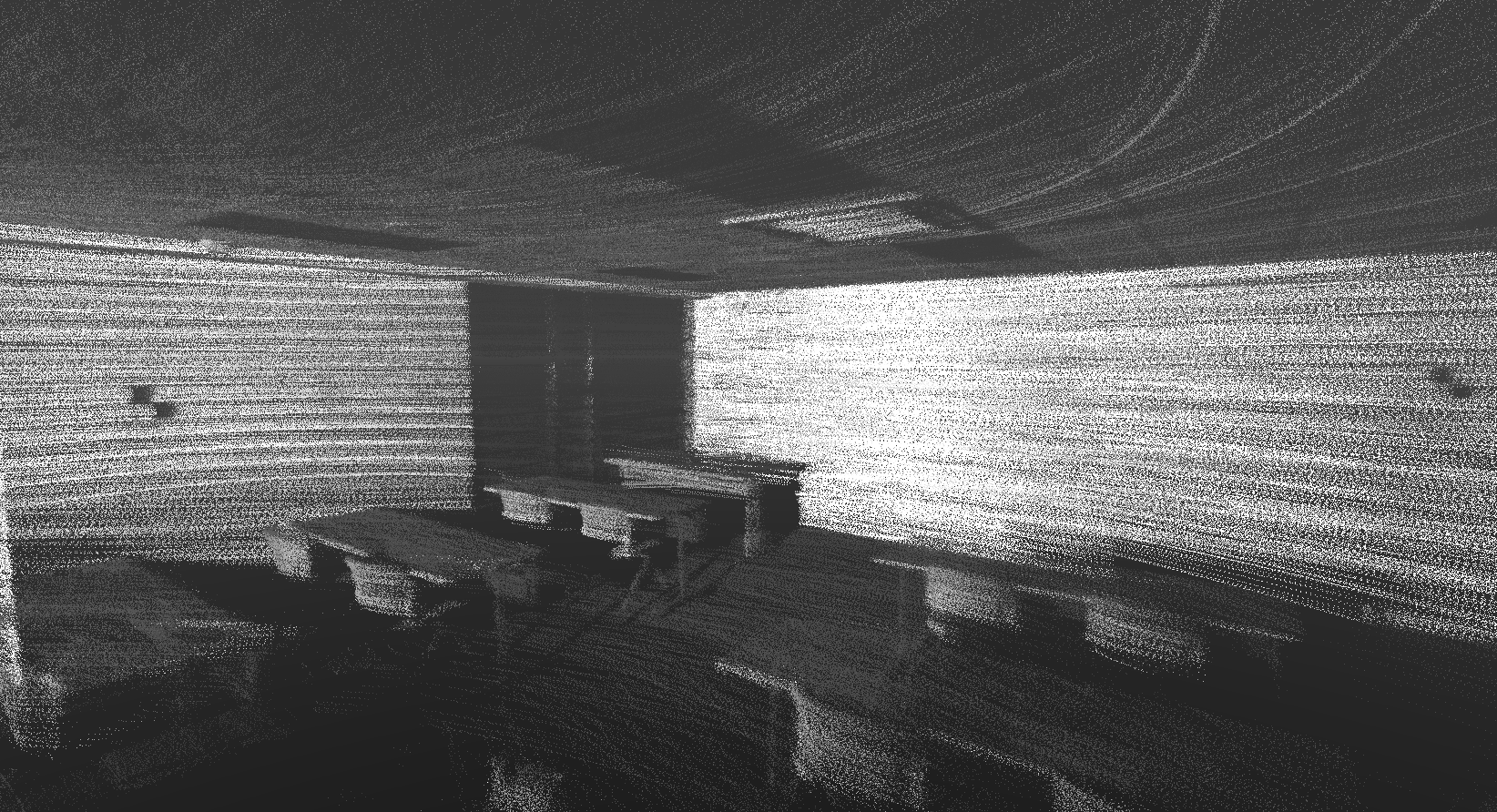
The geometrical criteria to update maps are below explained.
- Max distance [m]: “Max distance” from the sensor will be deleted from the map when the map gets updated
- Min distance [m]: Similarly, any point closer than “Min distance” will remain in the map no matter what. All points between min and max distance will remain in the map if they have been observed “recently”. All the points in the range of max and min distance will be used as a current registered map in the process to update new point cloud.
- History size: is another parameter to define the limit and size of the current registered map, i.e. History size is 120, it means, for instance, the process is running at 1262nd cloud, the latest 120 clouds which are already registered with each other will be used as the current registered map to update new cloud.
+ While running Odometer, the trajectory starts drifting, stop the Odometer process, increase the History size and Max distance when surrounding environment of that part of the survey has very poor geometry quality, by increasing these two value, bigger registered map with more useful geometry is used to update the drifted cloud. After changing any parameter or preset, use Run (recover state) to continue Odometer process.
- Add cloud max error: ONLY clouds with an associated error below the value specified will be eligible to be added to the map. This error comes from the estimation of the relation between accelerometer and the geometric alignment, it states as the absolute difference between how much the sensor moved according to the accelerometer and how much it moved according to the laser. The units for the error are relative to the total motion in a single cloud: i.e. if the odometer decides that in one cloud the sensor moved 2m and the error associated to the cloud is 0.2m, the value of the error for heron is 10% which is equivalent to 0.1
- Add cloud min distance: This is how much the sensor has to move in order for a cloud to be eligible to be added to the map. If the sensor does not move and keep acquiring point clouds, the clouds which are acquired while the sensor stands till not be updated to the map. When "Add cloud max error" and "Add cloud min distance" both are satisfied (good ICP quality and the sensor move enough), the cloud is added to the map.
- Update map threshold and Update map min distance:
All clouds selected to be added have to be joined with the map, all points flagged to be removed have to be deleted and a new kdtree has to be computed. Additionally, the less the map is updated the less drift. However, updating the map is necessary: as the sensor moves from one space to another, the new geometry has to be present in the map for ICP to work. The key idea is: update the map as few times as you can, but ensure that there is always enough information for ICP to work properly.
To do so, a simple criteria is how much the sensor moved: if it did not there is no need to update the map. This value is specified in the “Update map min. distance” parameter.
However, this is not very descriptive because when walking through a door, the sensor just moves some centimetres but all of the sudden the visibility of the environment changes drastically. To deal with these situations efficiently “Update map threshold” parameter is introduced. Each time we align one cloud with the map we select randomly 10000 points from the cloud. For these point we retrieve the nearest neighbors from the map and we discard all correspondences that are potentially wrong (nearest neighbor too far, or with an incompatible normal…). This way, after performing ICP we get that, if we selected 10K random points from the cloud, only 6K of them were used for the alignment due to wrong associations of the other 4K. This means that only 60% of the cloud points had a counterpart in the map and this is the value we use to trigger a map update: if “Update map threshold” is set to 80% means that after aligning a cloud, if the ratio of valid associations is below this value, the map is outdated and has to be recomputed with all the pending clouds selected since the last update.
REGISTRATION
These parameters express the criterion by which maps are register between them, along the trajectory.
The Iterative Closest Point algorithm is used to do it.
- ICP iteration: Number of allowed iterations running in the ICP algorithm.
Increase this value to obtain a better convergence to the minimum error. - Correspondences: Number of homologous points used to register nearby clouds.
Increase this value to obtain a better registration between nearby clouds - Max distance: Final nearest neighbours maximum distance (in m) permitted in the last ICP iteration.
- Max angle: Final nearest neighbours maximum angle (in DEG) permitted in the last ICP iteration.
- Keep best: After filtering out those that did not satisfy the previous constraints, correspondences are sorted by distance and only the percentage defined in “Keep best” are used for the alignment. For each alignment the algorithm discards the worst 1 minus keep_best correspondences trying to remove outliers..
Process
- Run (reset state): to run everything from "zero"
- Run (recover state): during Odometer processing, starts from the beginning with Run (reset state) and the process can be stopped and resumed the odometer process at any point. So, to resume the process, use Run (recover state) to make use of registration history to update new cloud to the map
- Valid clouds count: the number of clouds defining the registration history, default value is 20, it means when use Run (recover state) to resume Odometer process, a registered cloud includes 20 previously registered clouds will be used to update new cloud.
- Cloud max error: the estimation of error allow to resume Odometer process
Meaning of the colorization of the processed trajectory
When processed the trajectory assumes a particular colorization that qualitatively indicates the computed estimation error previously explained.
Pure green = 0% estimation error
Pure red = 100% estimation error or above.
When it is blue means that the Kalman filter was reset (either because the user stopped the processing and resumed it with the reset state option or because registration was so poor that the system decided that is better to reset the Kalman filter and start from scratch).
Follow the step-by-step video tutorial to learn how to run the Odometer process.
Tips
|
|
Use of presets - if the sensor is in a very narrow environment it may suppress too many points and make odometer process impossible. Suggestions: the minimum distance value should be as large as possible to improve stability. 2 metres has proven to be a good value, but it may need to be manually changed to 1 meter in narrow environments. The same applies for outdoors: if you can afford 8 metres for the minimum distance, results may improve. On the other side, desperate is pretty explanatory by its name. Use it when nothing else works. What it does is forcing the local map to be updated after each single cloud so all the environment observed in the near past is available for ICP. This has a major advantage: sliding situations can be better solved and a disadvantage: computational time slightly increases. |
|
|
MAIN Suggestion FIRST… 1 Set Indoor/Outdoor Preset 2 Run Odometer for the complete tracklet …THEN 3 from the processed trajectory, check where there is red color along the trajectory, turn on preview mode, move the slider at the bottom back and forth slowly to check if there is a drift at that red part of the trajectory 4 if drift detected, Go back, move the slider before a critical point 5 Set Critical Area and/or change the parameters, according to the previous indications 6 Run (recover state) for a short path, until the critical point is passed. Then change back to Indoor/Outdoor preset |
|
|
|
|
|
If too many people or vegetation are too close to Heron® 1 When you see the critical point, Stop Odometer 2 Go back, before the critical point 3 Check Filter minimum distance 4 Choose a value of the minimum distance so that people/vegetation who are too close to Heron do not take into account in the analysis
5 Run (recover state) for a short path, until the critical point is passed. Then change back to Indoor/Outdoor preset |
|
|
In presence of far vegetation 1 When you see the critical point, Stop Odometer 2 Go back, before the critical point 3 Check Filter maximum distance 4 Choose a value of the maximum distance so that vegetation which is too far to Heron do not take into account in the analysis. I.e vegetation is 70m away from the system, set Max distance is 65m to eliminate points acquired from vegetations in the analysis
5 Run (recover state) for a short path, until the critical point is passed. Then change back to Indoor/Outdoor preset |
|
|
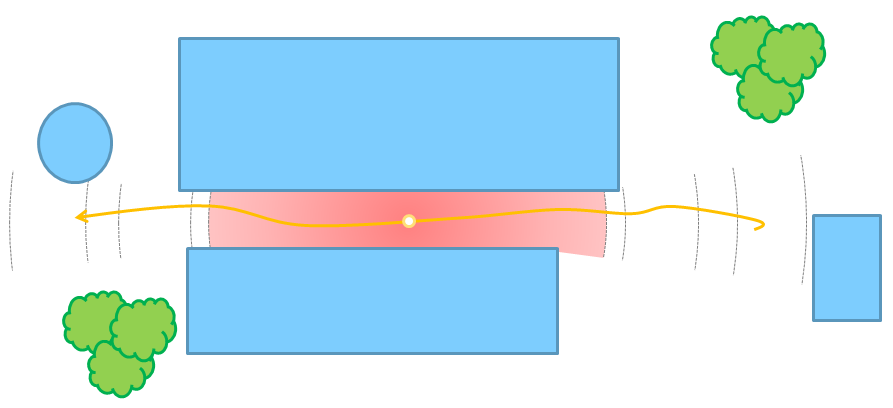
If a wrong trajectory is obtained (narrow passages, stairs and aisles without features) 1 When you see the critical point, Stop Odometer 2 Go back, before the critical point 3 Set the Preset “Critical Area” 4 Increase the number of ICP points 5 (Optional) Resolution 0.2cm to make use of all available geometry 6 (Optional) change minimum/max distance 7 Run (recover state) for a short path, until the critical point is passed. Then change back to Indoor/Outdoor preset |
|
|
If the trajectory pass through a long tunnel without significant features, could happen that the cloud registration fails. To avoid it 1 Stop Odometer 2 Go back, before the beginning of the tunnel 3 Choose a value of the minimum distance so that portions of tunnel that are too close to Heron do not take into account in the analysis 4 Run (recover state) for a short path, until the critical point is passed. Then change back to Indoor/Outdoor preset
|