
Tracking odometer
 This function is available only if the Tracking add-on is licensed.
|
|
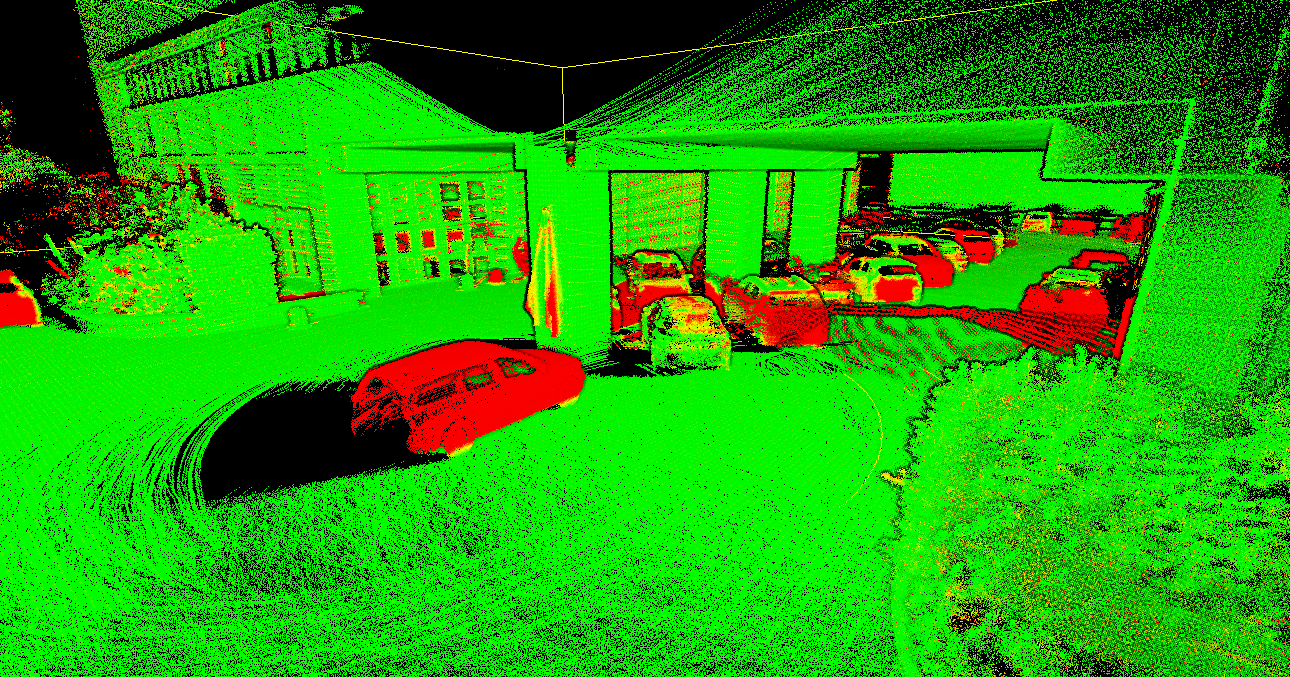
This process re-calculates the trajectory by clouds registration, every individual point cloud acquired by the system will be directly aligned with reference model getting the final global accuracy as close as the accuracy of reference model. A reference model can start from a 3D mesh, static/mobile point cloud, BIM/CAD and other 3D data which can be imported in Reconstructor. In addition, any changes between the new data acquired by HERON and the reference model will be highlighted and will be saved as a color layer on the final 3D point cloud. |

Tracking Odometer is a function which allows users in post processing process to add a reference 3D model of the same survey site. This model will become reference for all the operations in HERON Desktop to follow which remarkably increase the accuracy and speed of post-processing data.
Select the tracklet in the project and click the Tracking Odometer button.
Reference Map
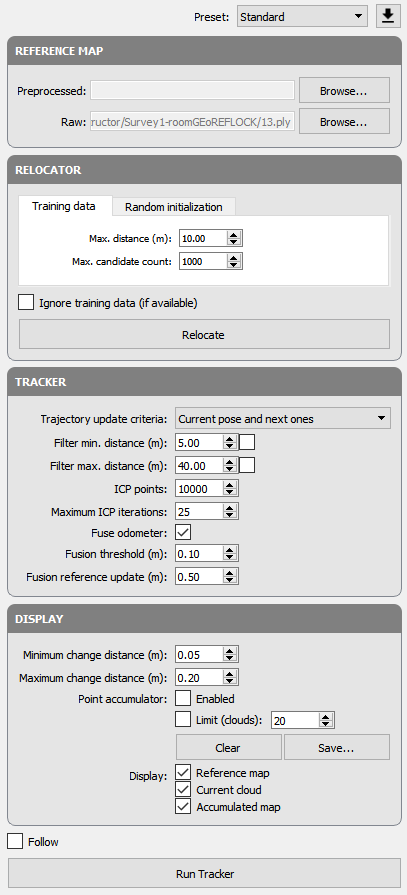
First of all, it is necessary to load the reference map. It can be originated from two types of data:
- Preprocessed: select the folder containing an already pre-processed HERON survey to be loaded as reference map
- Raw: select the .ply file to be loaded as reference map
The process is faster when importing a Reference Map (because the explorable space has already been calculated), while it is a little slower if you load a raw scan (like a .ply exported with Go To Reconstructor step).
After loading the reference map, next steps appear in the recipe window, staying with you in the following process.
Relocator
The first operation to run is to locate the Heron® acquisitions to the loaded reference map.
After selecting the parameters click on Relocate button.
Tracker
- Trajectory update criteria: in the drop-down list select one of the criteria to update the trajectory during computation.
Only current pose
Current pose and next ones
All (rigid trajectory) - Filter minimum distance [m]: Check ☑ and set a value X to not take in account, during Tracking Odometer process, points at a range distance shorter than X meters.
Use this filter in case of moving people and/or objects like vegetation close to the sensor and objects useful to a good alignment far from the sensor. - Filter maximum distance [m]: Check ☑ and set a value Y to not take in account, during Tracking Odometer process, points at a range distance longer than Y meters.
Use this filter in case of moving people and/or objects like vegetation far from the sensor and objects useful to a good alignment close to the sensor.
 If no labels are checked all the acquired points will be considered during Odometer process.
If you don’t need to use all range, select “Filter maximum distance (m)” and set 70 m or less (according to the needs).
- ICP points: Number of homologous points used to register nearby clouds.
Increase this value to obtain a better registration between nearby clouds - Maximum ICP iteration: Maximum number of allowed iterations running in the ICP algorithm.
Increase this value to obtain a better convergence to the minimum error. - Fuse odometer: Check ☑
- Fusion threshold [m]:
- Fusion reference update [m].
Display
- Minimum change distance [m]: set minimum value of displacement from reference data and new data will be displayed
- Maximum change distance [m]: set maximum value of displacement from reference data and new data will be displayed
- Point accumulator
- Display
Check ☑ Reference map to display the Reference map while processing
Check ☑ Current cloud to display the Current cloud which is under processing
Check ☑ Accumulated map to display all clouds which has been processed and updated
After setting the parameters above explained, click the Run Tracker button to start process.
To export the colorization of the tracking process in an output point cloud, readable and manageable in Reconstructor®, it is necessary to follow the next steps:
- Enable the Point Accumulator option by flagging it
- Run Tracker process
- Store the color computation by clicking on Save button
- Import the point cloud in Reconstructor® by using the Changes map tool.
A point cloud including the colorization of the tracking results (as it is visible in Heron® Desktop and also editable) will be added to the Reconstructor® project.
See more details at Changes map.
Look at the complete workflow including the Tracking odometer processes at Tracking Odometer.
Follow the step-by-step video tutorial to learn how to run the Tracking Odometer process.
Tips
|
|
In critical processes When the area to investigate is complex or few feature are available it could be necessary to run the Odometer step ( with Medium preset) before to proceed with Tracking Odometer process. In this way this step will lead to a better and faster result. |