
Static Clouds Workflow
 With static cloud we here mean every generic point cloud without an associated trajectory. It can be a cloud from TLS, UAV, ... or mobile system as HERON®.
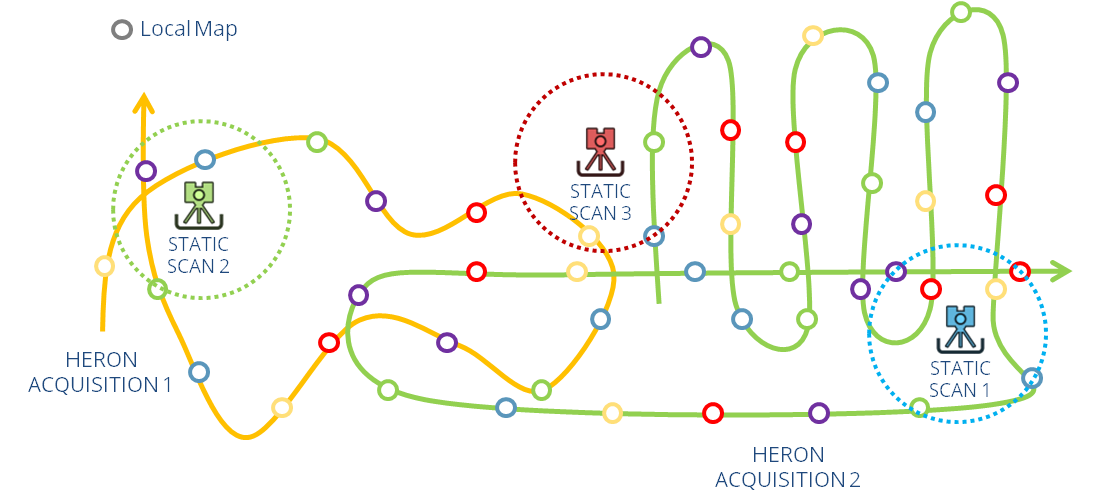
To prepare and work with this workflow, it's highly recommended to create Reconstructor® project as soon as the HERON Desktop project is created (from the relative Heron® Desktop project) to ensure the proper link between Heron Desktop project and Reconstructor® project, then importing 3D data in this Reconstructor® project.
See more details at Getting Started and Send To Heron Desktop items.
This workflow includes two main steps:
- Import external point clouds in Reconstructor® (cleaning and georeferencing them if necessary) and send them to Heron® Desktop
- Integrate this 3D data with Heron Data to improve the Global Optimization process.
1. Send to Heron Desktop from Reconstructor®
|
|
To import reference/static point clouds into Heron® Desktop it's mandatory import before the clouds into the Reconstructor® project and then transfer them in Heron® Desktop through this command. |

When you select the Send to Heron Desktop button a recipe window allows you to choose the point clouds to be exported (by dragging&dropping them from the Project Window or by clicking the + button) and verify if they are ready to be exported.
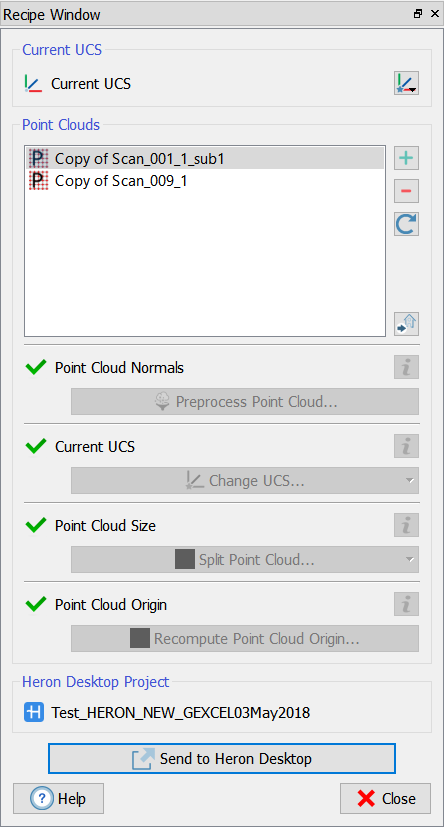
 Access all the details of verifications and settings at Send To Heron Desktop entry.
At the end of the configuration, click on Send to Heron Desktop.
The scans will be automatically imported and listed in Heron® Desktop > Mapper > Resources > Static Clouds.
Close the Heron® Desktop Mapper environment before to export data.
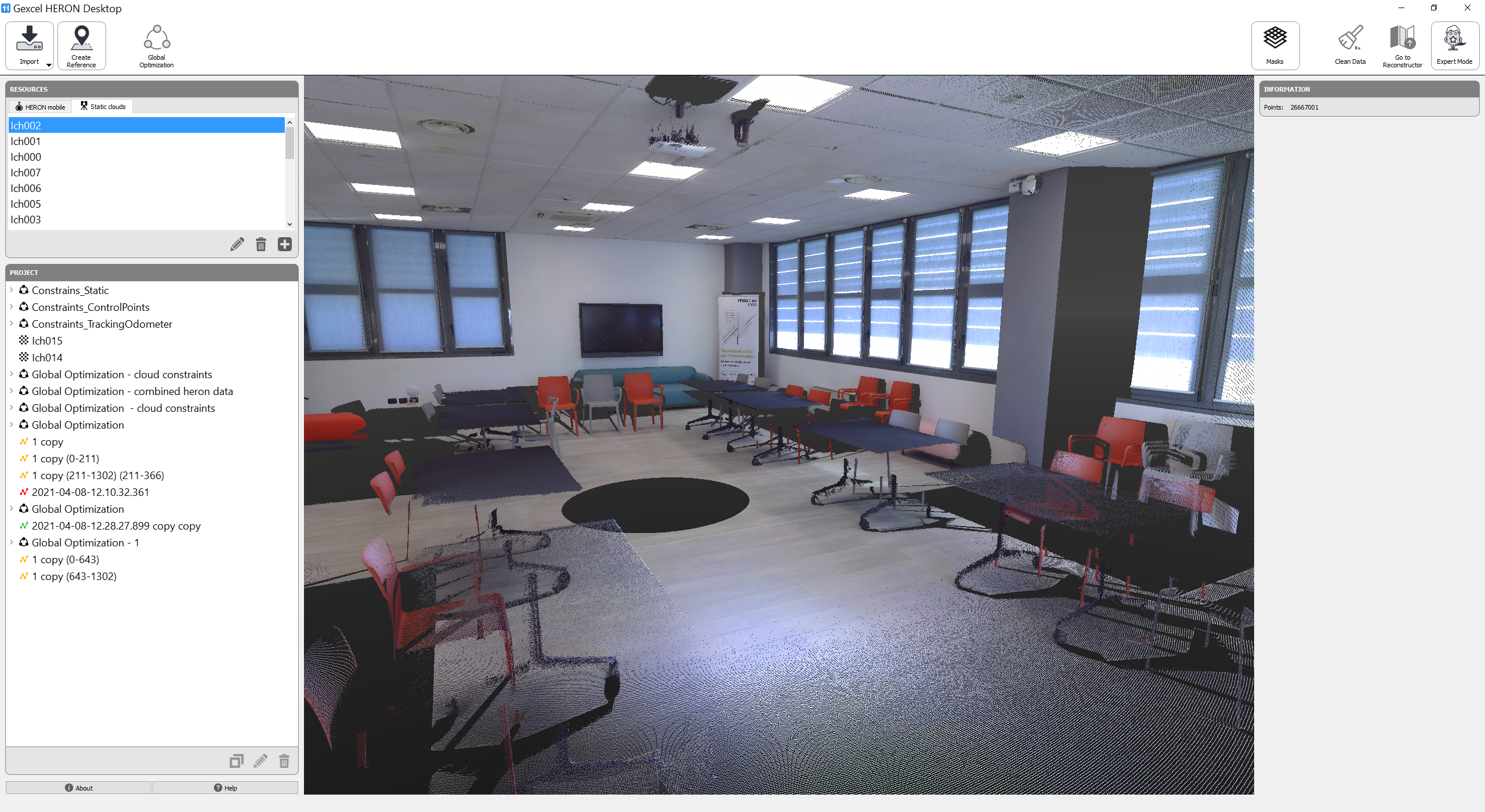
External point clouds imported in HERON Desktop
2. Integrate External Point Clouds with Heron Data
Any HERON data must be at least processed up to Create Maps is done before running the Global Optimization process.
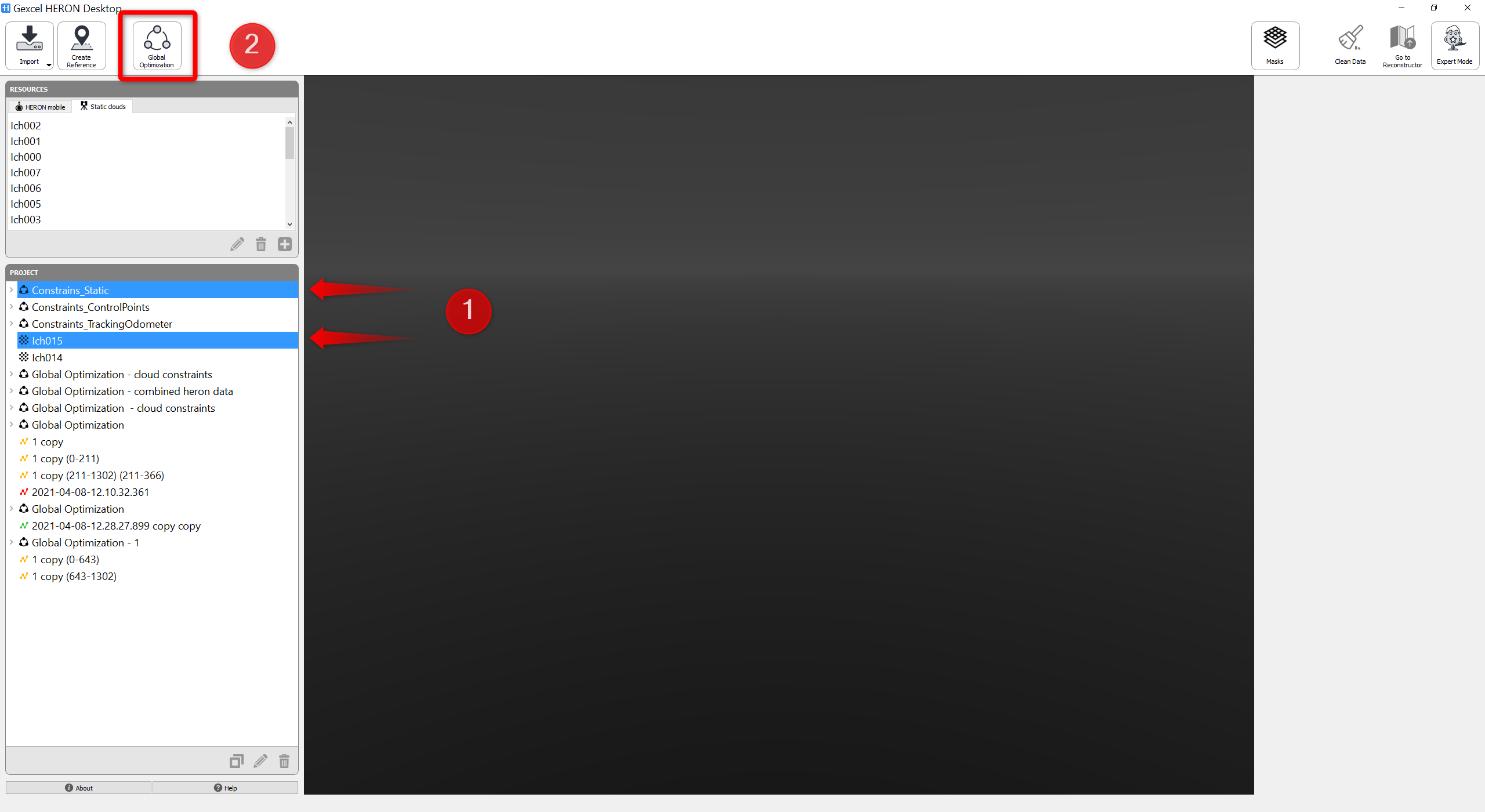
External 3D data (now listed in "Static clouds" resources) are not to be processed, but only added to the project section through  .
.
A HERON trajectory can be now ➊ selected with one/some static clouds from the Project window on the right to go to ➋ Global Optimization .
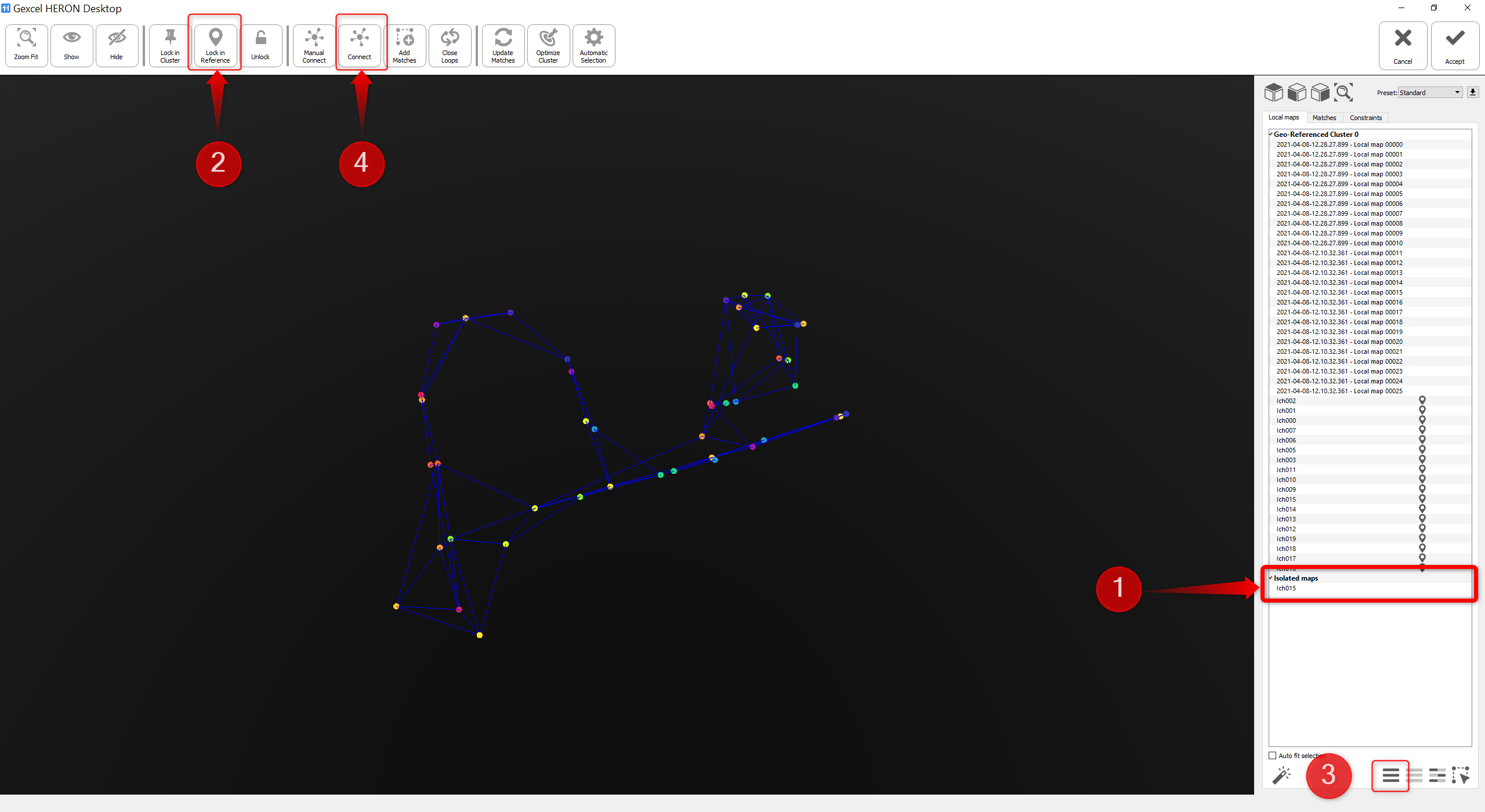
In Global Optimization workspace, newly added static clouds will be listed as Isolated maps in Local maps (on the right) as shown in the image below.
Before start doing further processes,➊ Isolated maps should be selected and set as reference data, ➋ using Lock in Reference tool to lock/fix the static scans as reference scans. For any further processes in Global Optimization which move the spatial location of HERON data, imported static clouds will be always fixed in space as they become fixed constraints and HERON local maps will be moved and adjusted globally with respect to static clouds.
To connect static clouds with HERON Local Maps in order to optimize the global accuracy of HERON Data, you can simply ➌ select all the clouds (both local maps and isolated maps) and ➍ click on Connect button.
A dialog will appear, proposing you several connections useful to merge the groups of clouds.
Follow the step-by-step video tutorial to deeply learn how to run the complete workflow using external clouds.