
Launch Window
Opening the HERON® Desktop software on your workstation PC a Launch Window will appear.
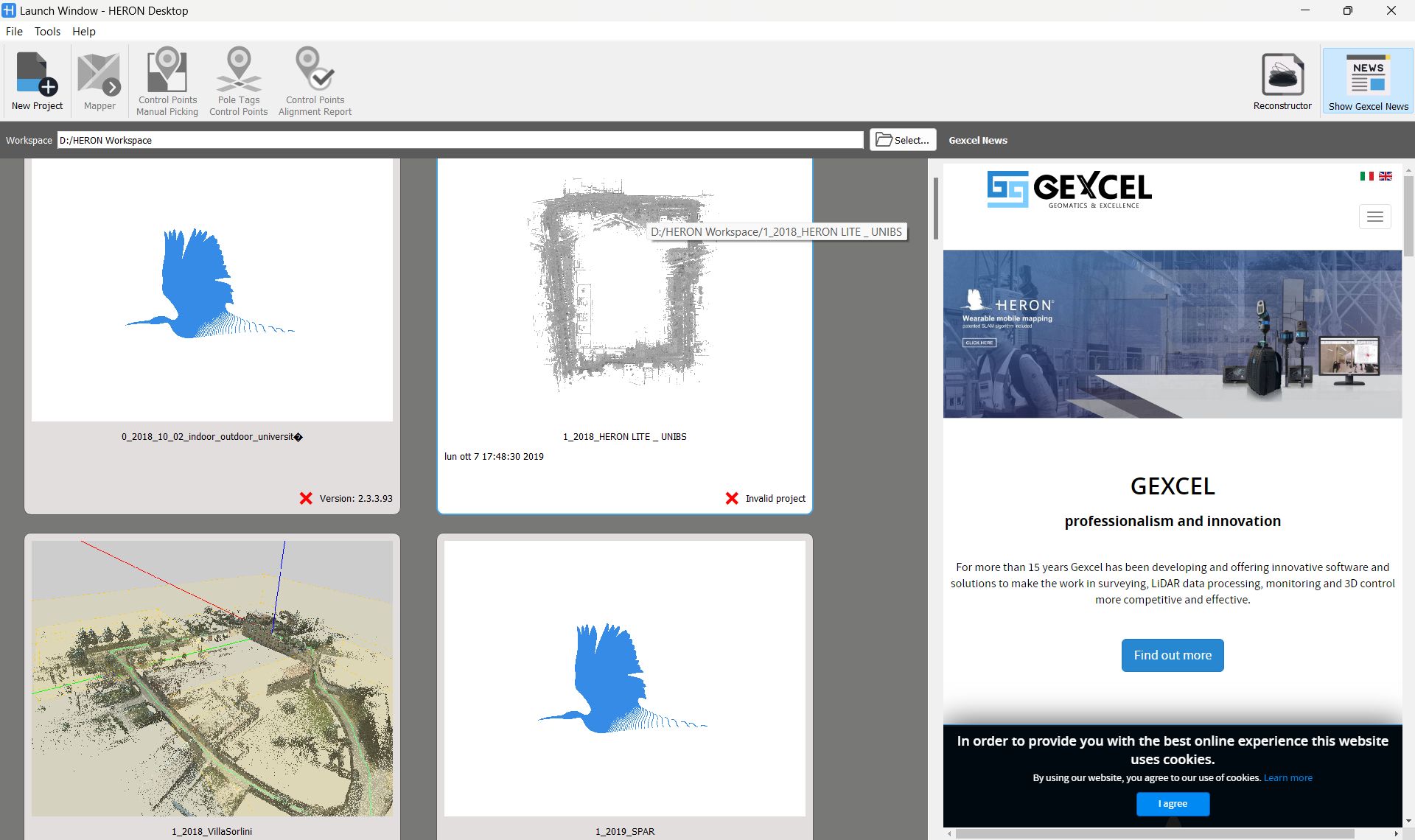
To change the destination folder containing the several Heron® projects click on Select in the top of the Launch Window, choose the path, and create a new workspace folder. Press the buttons Ctrl+O, alternatively.
Select an existing project in the projects list or create a new one.
|
|
To create a new project click on this icon. |

It's possible to customize the preview image by clicking on the small arrow above the Heron® image and add some notes to the main project. If a Reconstructor® project is connected to the current project, a screen shot of the Reconstructor® 3D main window is used.
 A project created with a version prior to 2.3 could not be opened in the current version of Heron® Desktop.
The main working environment must be selected,

meanwhile
|
|
several tools for handling the control points to constraint the HERON® trajectories are also provided. See more details in Usage of Constraints Workflow. |


|
|
This button is used to create a new Reconstructor® project (connected to the current HERON® Desktop project). If you are working on a new HERON® project, the creation of the Reconstructor project is the first suggested step. Starting from this point, every time you select this icon, the linked Reconstructor® project will be opened. The link between Heron® Desktop and Reconstructor® allows an easy and rapid workflow. Reconstructor® platform is mandatory for:
See more details in Workflows. For more details about the Reconstructor® capabilities please also refer to the Reconstructor® on line help. |

|
|
At the end this button shows or hides Gexcel news. |

Change the language: The software's language is managed by a drop-down menu in File > Change language tool.
After selecting one of the available languages (English, Italian, Russian), click on OK.
Project Merging Tool: Under the Tools menu in the top toolbar, select the Project Merging Tool to create a new HERON® Desktop project which merges in one two or more existing projects.
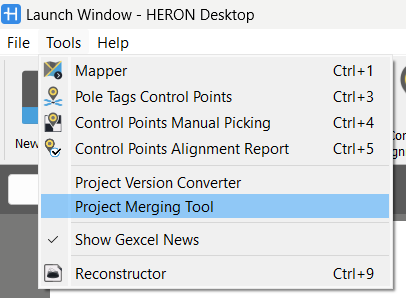
By selecting Project Merging Tool you can select two or more Heron Projects saved under the same Workspace.
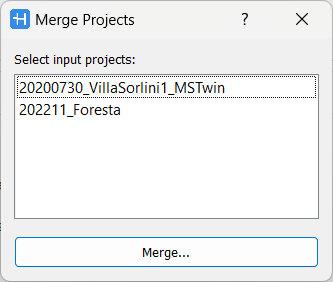
Only the HERON® Desktop projects are merged together and not the connected Reconstructor® project. In this sense, it is suggested to merge HERON® Desktop project before going to Reconstructor® with the final model. For the same reason, if using static scans is intended, it is necessary merge the Heron Desktop projects first, then create the corresponding Reconstructor project, import the static scans, and continue as normal.
See in Workflows page the explanation of the steps to better manage your data, depending on your purpose, input data and requested analysis.