
Global Optimization
|
|
This process globally registers (aligns) the local maps created by Create Maps. Static scans imported in the project can be also included in the Global Optimization. |

This important step could be run in different ways, according to the input items and the precess purposes. It's so possible:
1. To elaborate a single acquisition (tracklet) by aligning the local maps within it
2. To split a single acquisition (tracklet) in several parts and elaborate them by aligning the local maps
3. To elaborate more than one acquisitions (tracklets) by aligning the local maps within a single tracklet and also between different tracklets. A previous Global Optimization on the single tracklets could be preferable, in some cases. In this case it's possible to merge in a single process more than one cluster composed of different acquisitions.
4. To elaborate one or more acquisitions (tracklets) with one or more static scans. The static scans can be used as reference point clouds if, for example, they are georeferenced.
The connection between both different local maps and static scans must be guaranteed by a sufficient overlap, in order to run the cloud to cloud registration.
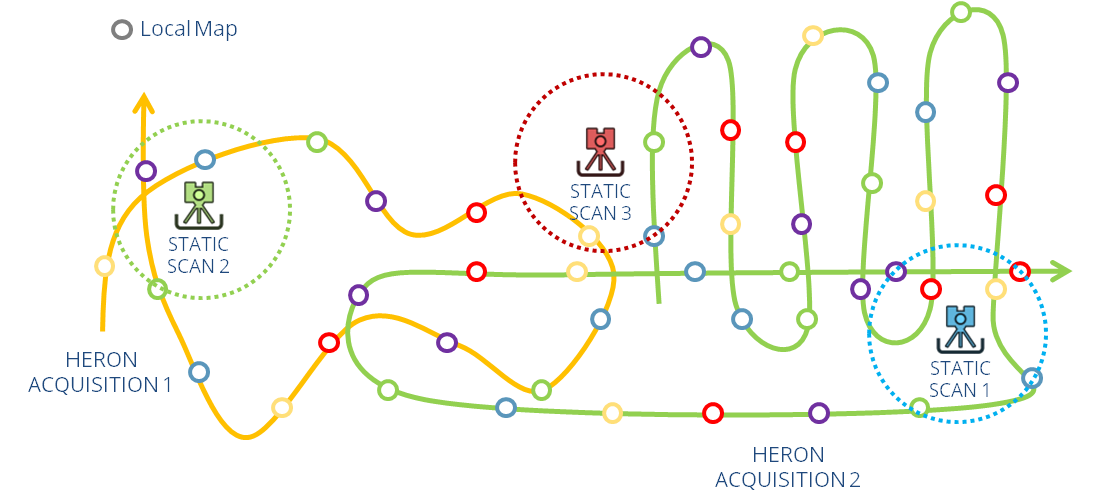
Example of Global Optimization between Heron® acquisitions and external Static scans
After opening the Global Optimization command, a window will appear.
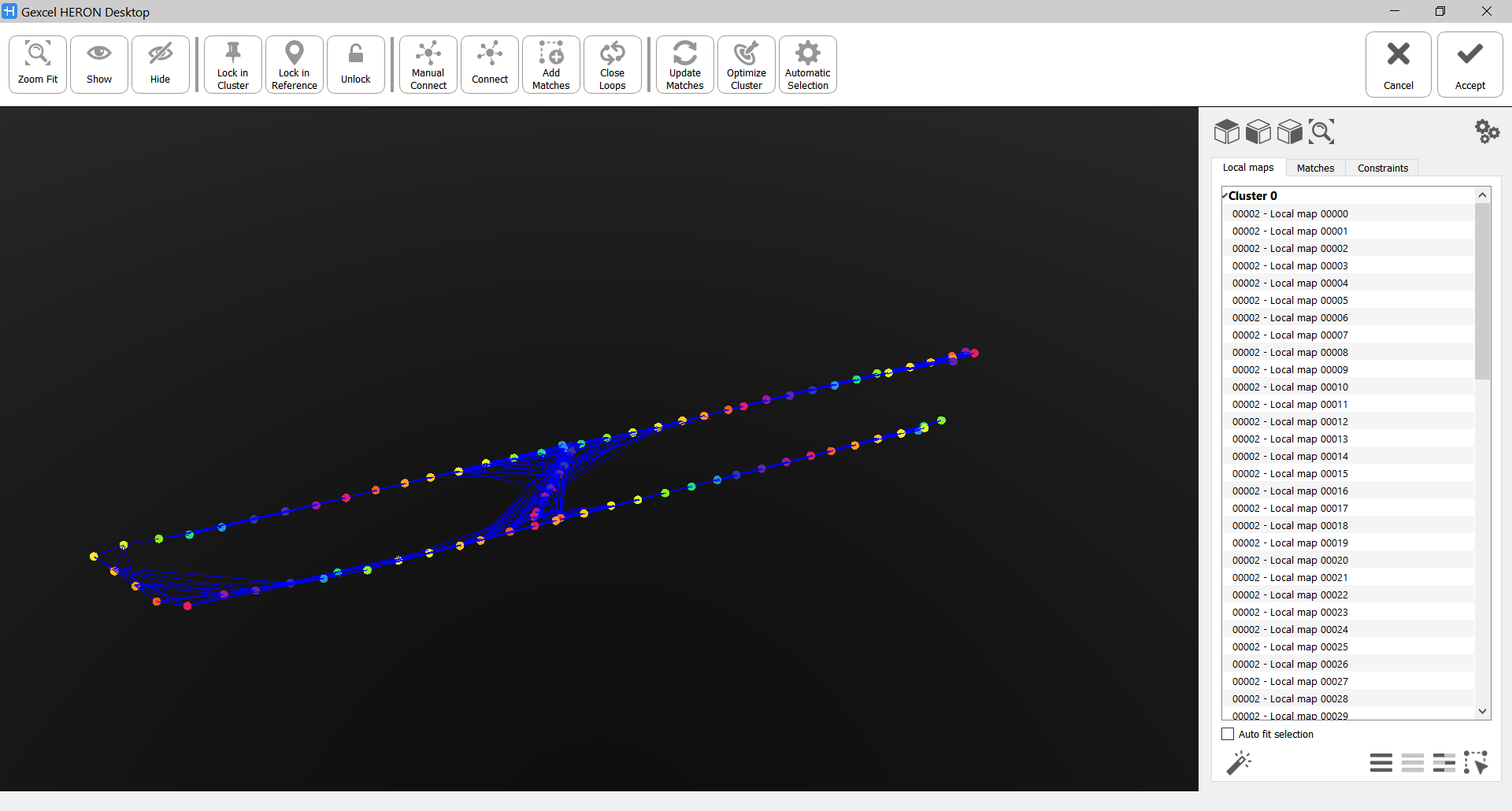
In the top toolbar all the main commands are present (see below):

In the 3D window every local map (generated in the Create Maps step) is identified by a colored dot and every connection (Match) between two local maps is a blue segment.
In the right side tabs, local maps and matches are listed in two separated tabs.
The local maps are organized by cluster. The maps inside a single cluster are fully connected between them and they rigidly move like a group. For example, a tracklet is a single cluster, initially.
 If a match connecting two parts of a tracklet forming a cluster is deleted, this cluster will be split in two independent clusters.
If the matches between a local map and the other ones are deleted, this local map will be completely disconnected from the rest and included in a special cluster named Isolated Maps. An isolated map is not used at all in the Global Optimization process and will not be exported as a part of the result. Isolating a map is a way to "delete" a not useful (or wrong) local map.
Navigation and selection
To select a local map/match in the 3D window hold the CTRL button and click on the relative colored dot/blue match.
To select more than one local map/match make a window selection by holding the CTRL button (or the CMB) and dragging&dropping the cursor to select the desired area.
The selected dots will be grey colored and highlighted in the Local Map tab.
The selected matches will be bold and highlighted in the Local Map tab.
Local maps and Matches can be selected also by clicking on them in Local Map and Matches tabs.
|
|
Select these predefined views to move the point of view in the 3D View, according to the selected one. |
|
1 and 2 |
Select/unselect the buttons to show/hide point cloud 1 (the reference one) and point cloud 2 (the moving one) |
|
|
Select this button (or Ctrl+F) to zoom the view on the couple of local maps. |


Local Maps
In the Local Maps tab you can manage the selection by using the following commands:
|
|
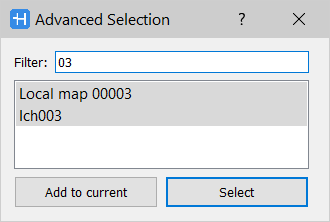
Advanced Selection [F3] To select the listed local maps by filtering them through a research of the name's characters.
|
|
|
Select All [Ctrl+A] To select all the local maps in all the clusters. |
|
|
Select None [Ctrl+N] To unselect all the local maps in all the clusters. |
|
|
Select Inverse [Ctrl+I] To invert the selection of the all the local maps in all the clusters. |
|
|
Select Matches [Ctrl+M] To select all the matches in all the clusters. |



In the top toolbar the main commands that you can use during the Global Optimization process are listed.
|
|
Zoom Fit [Ctrl+F] To zoom the view on the selected local map. |
|
|
Show [Ctrl+S] To display the selected local maps. To visualize a map you can also hold down the Ctrl button, move the mouse over the relative colored dot and click the left mouse button. |
|
|
Hide [Ctrl+H] To hide the selected local maps. |


|
|
Lock in Cluster [Ctrl+K] To lock the position of one or more local maps inside the cluster. Use this command if you already registered in a good way a portion of your acquisition and you want that no changes are applied on it during the following processes. |
|
|
Lock in Reference [Ctrl+R] To lock the position of one or more local maps or static scans in the whole Global Optimization process. |
|
|
Unlock [Ctrl+Shift+L] To unlock the position of one or more local maps or static scans in the whole Global Optimization process. |


|
|
Manual Connect [Ctrl+T] To manually connect two local maps by selecting them from the same cluster and also from different clusters. To manually connect two maps, hold down the Ctrl button, move the mouse over the relative colored dot and hold down the left mouse button. Then, drag the mouse and create a vector to another colored dot and release mouse button. |
|
|
Connect [Ctrl+C] To connect local maps or static scans that belong to different clusters. This command is designed to merge together two or more clusters by considering/selecting only few or all the local maps in the clusters (to automatically search new matches). After choosing the local maps and selecting the Connect command, a list of eligible matches will be proposed. Only one good match is required to connect two clusters. Every match is characterized by a Score (from 0 to 100) that identifies the quality of the alignment between the local maps. It's suggested to At this point two options are available to define the better match to connect the clusters. Edit: the Match Editor window opens and the registration process can be improved with it Refine+Add: to automatically edit the Match and add it to the Matches tab |
|
|
Add Matches [Ctrl+D] To automatically add matches between the local maps within the same cluster. |
|
|
Close Loops [Ctrl+L] To find connections between local maps .The analysis is run in all the cluster. The minimum distance is length of the shortest path between two local maps (considering the distance as the number of matches that have to be visited in order to reach map B from map A). Only maps further than the specified value will be considered. |


|
|
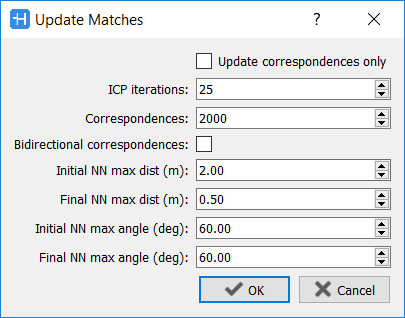
Update Matches [Ctrl+U] To update the ICP process inside matches, according to new parameters settings.
See Global Optimization Settings and Match Editor to understand the meanings of all the parameters. |
|
|
Optimize Cluster [Ctrl+O] To run fine alignments in a cluster. The ICP algorithm on existing matches will be update by using the set advanced parameters. The Number of iterations that the process has to run in order to converge to a minimum error is required. The optimization generally detects convergence before reaching the specified value and performs an early termination. It is not usually necessary to use more than 100 iterations. By running the Update Matching process, the Optimize Cluster one is automatically carried out. |
|
|
Automatic Selection [Ctrl+B] To automatically find matches between the maps in a cluster after selecting the clouds in the cluster. When the process is over, the results appear in Matches tab.
|



Matches
In Matches tab a list of matches which relate one map with another one is displayed. When you click a match, it will be highlighted in the 3D view and the below information, subdivided by columns, are displayed:
Overlap (%): Ratio of query points that have a valid nearest neighbour.
Example: if the number of correspondences requested is 2000 and only 500 query points found a valid nearest neighbour (a point in the other cloud close enough and with a normal similar enough) the overlap will be 25% (0.25).
RMSD (cm): The root-mean-square deviation (RMSD) is a measure of the differences between each point in a map and its homologue in the connected map. RMSD is a standard deviation of residuals and it is a measure of accuracy of the match.
Error (m+rad): Distance between the poses of the maps in the current state respect to the relative pose specified by the match. The distance is computed as the sum of the distance between positions (in meters) and the distance (in radians) between Euler angles [1 m error = 1 rad error]. This value is useful to sort matches based on their compatibility with the current state.
To modify a Global Optimization result, select it by clicking on its name in the Projects window and run again the Global Optimization command.
To keep a former Global Optimization process without changes, it's possible to create a clone of the Output tracklet and use it to run a new Global Optimization process.
Work with Static Scans (external point clouds used as constraints)
When one on more static scans are inserted in the Global Optimization, they are listed in a cluster named "Isolated Map" and they are not visible in the 3D view, because they are not already connected to the Heron mobile data and their localization is unknown.
A connection and registration must be created between the point clouds and the local maps' cluster.
To do it you need to select the cluster(s) and the static scan(s) you want to register/connect, and select the command Connect: a window will appear, showing you a list of possible matches, listed by score. Only one match is necessary to connect one static cloud and one cluster, more are needed if you are connecting more scans or clusters. Select then the match(s) with the highest score and click on Edit to open the Match Editor Window, refine the cloud to cloud registration and add the match to the project. After adding the necessary matches the window will be automatically closed and the static scan(s) is(are) joined to the cluster(s). At this point they are visible.
 To use the one or more static clouds as reference in the 3D space and adapt the Heron acquisitions' positioning on them, you need to before lock the position (
 ) of the static scans into the Global Optimization process.
When the Global Optimization process is done by using reference scans locked in their reference position (or in the cluster), don't flag the Use gravity correction parameter.
Constraints
This function is available only if the Constraints add-on is licensed.
In Constraints tab the coupling between the Ground Control Points defined for the project and the current Local Maps are listed.
When you click a match, it will be highlighted in the 3D view and the below information, subdivided by columns, is displayed.
Error (m): Distance between the poses of the maps in the current state respect to the relative poses specified by the constraints coordinates.
See more details in Usage of Constraints Workflow.
Follow the step-by-step video tutorial to learn how to run the Global Optimization process.
Tips
|
|
To elaborate tracklets that have some initial misalignments, the suggested workflow is:
At any rate, click on Optimize Cluster after the manual adding of matches. |
|
|
To reduce alignment errors, after the “Automatic Selection” and “Optimize”, reorganize the data in the report from “Error (m + rad)” and check the matches with a high values, by the Match Editor. If these matches cannot be improved, consider the possibility of deleting them. Which is a good limit value for “Error (m + rad)” ? That really depends on the survey, and a fixed value cannot be proposed. Usually, you can use 0.05 in a good tracklet, always making sure that you do not split the cluster into two when removing matches. However, if a lot of drift is present (or minor sliding) in some local maps, this value should be increased. |
|
|
The Automatic selection could be create wrong matches, connecting different levels, in multi-level (floor) survey. |
|
|
Force Manual Connection with few features When only few features in common between maps are available, the ICP process can fail. There is the possibility to add a mach with a Manual Connection even if the ICP failed due to few features. Set the Useful when merging optimized trajectories with few overlapping areas (e.g. indoor - outdoor) |